
Reviews
Deine Folien sind meine 'geheime Zutat', wenn es darum geht, meine Ideen Kunden zu visualisieren. Ich spare so viel Zeit.
Ihre Folien führen oft zu guten Kommentaren und Ideen meines Teams, die die endgültigen Folien verbessern.
Description
Listing Complementary Pieces – Hexagons Diagram
Slide Content
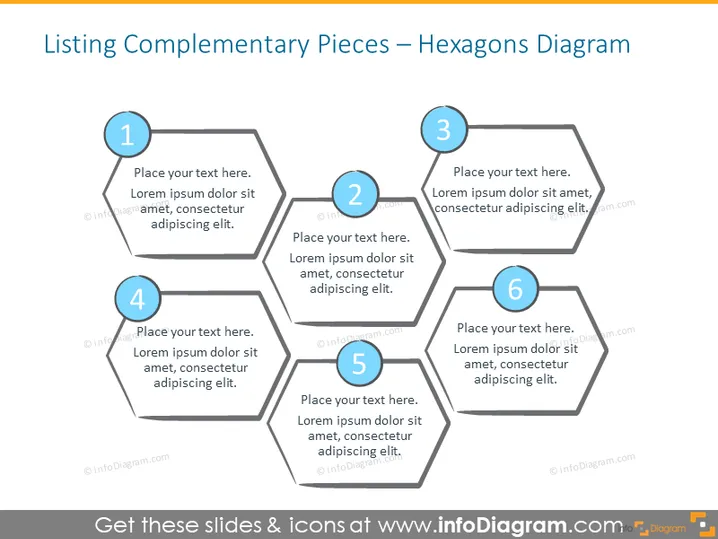
The PowerPoint slide illustrates a hexagon-themed diagram titled "Listing Complementary Pieces." It consists of six interconnected hexagons, each numbered from 1 to 6, symbolizing individual but related components. Under each number is a placeholder for text, implying that each hexagon represents a different idea or step in a process. This diagram could be used to describe a system where each part contributes to a larger whole, or to outline a sequence of steps or elements that are interconnected.
Graphical Look
- The overall color scheme is a combination of light and dark shades of blue, with each hexagon outlined in the darker shade.
- Each hexagon has a circular, blue icon with a white number, from 1 to 6, positioned in the upper part.
- The hexagons are arranged in two vertical lines and connected by lines, which gives the impression of a puzzle being pieced together.
- The circular number icons within the hexagons seem to pop out, due to their contrasting color and placement.
The slide has a clean and modern look; the use of hexagons and the interconnecting lines create an impression of a cohesive system or process. The design is professional and likely to engage an audience with its clarity and visual appeal.
Use Cases
- This slide can be used in business presentations to outline stages of a complex project with interdependent phases.
- It can be utilized to present the components of a strategic plan, illustrating how each element supports the others.
- Ideal for explaining the integration of different units or departments within an organization.
- Useful for summarizing a multi-step process to stakeholders or clients, emphasizing the contribution of each step to the overall goal.
How to Edit
How to edit text & colors

How to expand / shorten diagram

How to Replace Icons in infoDiagram PPT


