
Reviews
Ihre Grafiken verleihen meinen Präsentationen eine nette Note, und ich habe sie kürzlich für eines meiner All-Hands-Meetings verwendet. Ihre Toolbox verleiht meinen Folien Professionalität, anstatt Standard-Clipart zu verwenden.
Ich brauchte einen neuen Blick auf einige meiner Folien. Ich habe versucht, einen Weg zu finden, einen Pinselschlag-Effekt zu erzielen, um zu unterstreichen, hervorzuheben, Farbe hinzuzufügen, und die handgeschriebenen Markierungen waren genau das Richtige. Sehr einfach zu bedienen, leicht in der Größe zu ändern, die Farbe zu ändern. Es war eine erschwingliche, perfekte Lösung und ich empfehle sie gerne weiter.
Die klare, saubere Optik der Grafiken und die Tatsache, dass ich die Farben leicht bearbeiten und an die Vorlage anpassen konnte, war mein Hauptgrund für den Kauf.
Description
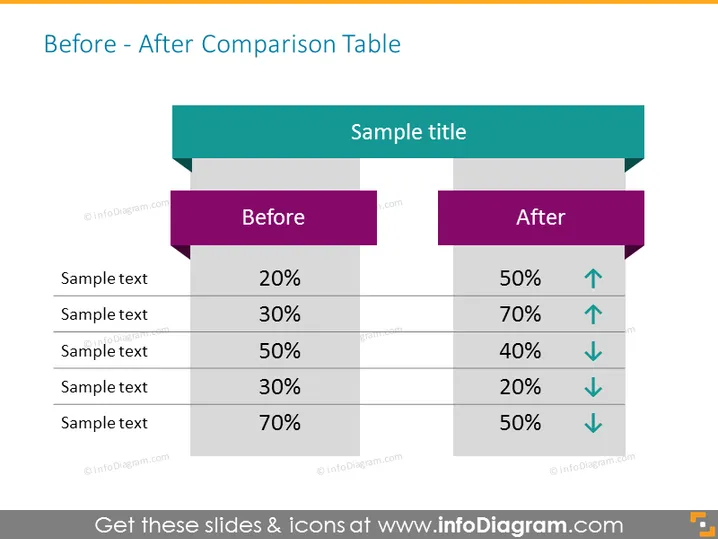
Before - After Comparison Table
Slide Content
The slide presents a "Before - After Comparison Table" that features two columns labeled "Before" and "After," each consisting of five pairs of items with corresponding percentages. These pairs indicate a comparative metric, with the "Before" column showing the initial state and the "After" column showing the changed state. Each "After" item also includes an arrow, signifying whether the number has increased (up arrow) or decreased (down arrow). This visual comparison indicates performance improvements or declines between two different states.
Graphical Look
- Two header ribbons with captions - "Before" in teal and "After" in purple, set over dark gray rectangles that serve as their background.
- "Before" and "After" columns separated by a vertical divider line with each entry consisting of sample text aligned to the left and numbers to the right.
- Percentages listed are in bold with a larger font to emphasize the metrics, and these are related to the sample text, which is likely descriptive of the metrics.
- Green upward arrows beside the "After" percentages indicate an increase, and blue downward arrows indicate a decrease, symbolizing change in each metric.
- The entire composition is laid out on a white background, giving the colorful elements and text clear visibility.
The slide features a clean and straightforward design with contrasting colors to differentiate between the 'Before' and 'After' states. The use of arrows provides a quick visual cue on the direction of change for each comparative metric.
Use Cases
- To demonstrate the effectiveness of a new strategy or process by comparing results from before and after implementation.
- To present quantitative results of a marketing campaign, showing the evolution of key performance indicators (KPIs).
- To compare financial figures, such as sales or revenue, before and after a significant change or event.
- To use in educational settings to show the impact of an intervention or new teaching methods on student performance.
How to Edit
How to edit text & colors

How to expand / shorten diagram

How to Replace Icons in infoDiagram PPT


