
Reviews
Ihre Grafiken verleihen meinen Präsentationen eine nette Note, und ich habe sie kürzlich für eines meiner All-Hands-Meetings verwendet. Ihre Toolbox verleiht meinen Folien Professionalität, anstatt Standard-Clipart zu verwenden.
Ich brauchte einen neuen Blick auf einige meiner Folien. Ich habe versucht, einen Weg zu finden, einen Pinselschlag-Effekt zu erzielen, um zu unterstreichen, hervorzuheben, Farbe hinzuzufügen, und die handgeschriebenen Markierungen waren genau das Richtige. Sehr einfach zu bedienen, leicht in der Größe zu ändern, die Farbe zu ändern. Es war eine erschwingliche, perfekte Lösung und ich empfehle sie gerne weiter.
Die klare, saubere Optik der Grafiken und die Tatsache, dass ich die Farben leicht bearbeiten und an die Vorlage anpassen konnte, war mein Hauptgrund für den Kauf.
Description
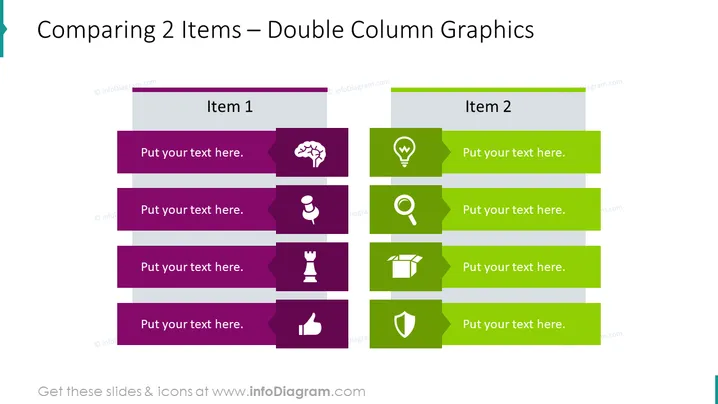
Comparing 2 Items – Double Column Graphics
Slide Content
The PowerPoint slide titled "Comparing 2 Items – Double Column Graphics" illustrates a comparison between two different items or concepts. Each column is dedicated to one item, and both columns contain four rows of color-coded text boxes with icons, allowing for a direct comparison. Each row represents an attribute or aspect of the items being compared, signified by the icon within. The designated space for text next to each icon prompts the presenter to input relevant information or descriptors related to that attribute, facilitating an organized comparison.
Graphical Look
- The slide has a clear, structured layout with a strong use of symmetry.
- Two columns, labeled "Item 1" and "Item 2," are presented in contrasting colors (purple and green).
- Each column consists of four horizontal bars with rounded corners; each bar contains an icon on the left and placeholder text right-aligned, suggesting the input of descriptive information.
- The icons are simple and white against the colored backgrounds, depicting generic concepts such as a brain (for ideas/thoughts), a light bulb (for innovation/ideas), a magnifying glass (for analysis/research), etc.
- Colors used are bright and have good contrast to ensure readability.
- The sides of each bar slightly overlap with a shadow effect, adding a sense of depth to each element.
The overall look is modern and visually appealing, with a clean, professional aesthetic designed to facilitate direct comparisons. The color contrast and iconography add to the slide’s effectiveness in conveying comparative information.
Use Cases
- Analyzing the strengths and weaknesses of two different business strategies.
- Presenting comparative data between two products or services to potential clients or stakeholders.
- Facilitating discussion in a meeting about the pros and cons of two different approaches or solutions.
- Educating employees during training by comparing old and new procedures or systems.
How to Edit
How to edit text & colors

How to expand / shorten diagram

How to Replace Icons in infoDiagram PPT


