
Reviews
Sus gráficos añaden un toque agradable a mis presentaciones y recientemente los usé para una de mis reuniones generales. Su conjunto de herramientas añade profesionalismo a mis diapositivas. En lugar de usar imágenes prediseñadas estándar.
Necesitaba un aspecto fresco para algunas de mis diapositivas. Había intentado encontrar una forma de crear un efecto de pincel, de subrayar, acentuar, añadir algo de color y los marcadores escritos a mano fueron justo lo que necesitaba. Muy fácil de usar, fácil de ajustar el tamaño, cambiar el color. Fue una solución asequible y perfecta, y estoy feliz de recomendarla.
El aspecto nítido y limpio de los gráficos, y el hecho de que me permitiera editar y cambiar fácilmente los colores para que coincidieran con la plantilla fue mi principal razón para comprarlos.
Description
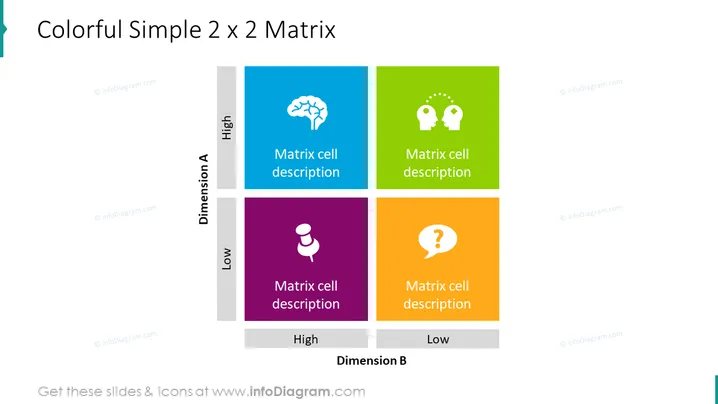
Colorful Simple 2 x 2 Matrix
Slide Content
This PowerPoint slide represents a colorful simple 2 x 2 matrix used for categorizing concepts based on two dimensions, labeled as 'Dimension A' and 'Dimension B'. Each axis ranges from low to high, dividing the matrix into four quadrants, each with a distinct color (blue, green, purple, orange) and a placeholder icon and text for a 'Matrix cell description'. The blue and green quadrants represent high values on 'Dimension A', while purple and orange indicate low values. The icons signify different aspects to be described, giving a visual cue about each quadrant's focus.
Graphical Look
- Four colored squares (blue, green, purple, orange) form the 2 x 2 matrix.
- Each square contains an icon in the center—brain for blue, two heads with gears for green, pushpin for purple, and question mark for orange.
- Underneath each icon is a placeholder text "Matrix cell description."
- The axis labels are 'Dimension A' for the vertical axis and 'Dimension B' for the horizontal axis, indicating the spectrum from low to high.
The slide has a clean and professional look, using contrasting colors to differentiate each quadrant of the matrix. The use of icons and bold text for labels makes the matrix intuitive and visually engaging.
Use Cases
- To analyze business strategies by mapping them onto varying factors such as risk and reward.
- During marketing presentations, to segment customer preferences or product positioning.
- In project management, to prioritize tasks or issues based on urgency and importance.
- For decision-making processes, visualizing options across different criteria like cost-efficiency and potential impact.
How to Edit
How to edit text & colors

How to expand / shorten diagram

How to Replace Icons in infoDiagram PPT


