
Reviews
Your graphics add a nice touch to my presentations and I recently used them for one of my all-hands meetings. Your toolbox adds professionalism to my slides. Instead of using standard clipart.
I needed a fresh look at some of my slides. I've tried to find a way to create a paintbrush effect, to underline, accentuate, add some color and the handwritten markers were just the things. Very easy to use, easy to size, change the color. It was an affordable, perfect solution and I'm happy to recommend it.
The crisp, clean look of the graphics, and the fact that it allowed me to easily edit and change the colors to match the template was my main reason for purchasing them.
Description
Client Selection Process Diagram Template – 4 Steps
Slide Content
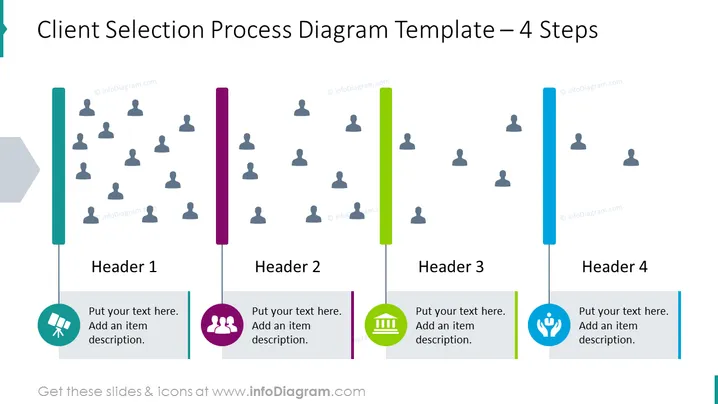
This PowerPoint slide is titled "Client Selection Process Diagram Template – 4 Steps." It outlines a four-stage process for choosing clients, indicated by the headers "Header 1," "Header 2," "Header 3," and "Header 4." Each header corresponds to a vertical colored bar, symbolizing a step in the process with placeholder text prompting to add an item description. Each step shows an icon with a group of figures, representing different groups of clientele, diminishing in quantity from left to right, reflecting a narrowing selection.
Graphical Look
- The slide background is white for a clean and uncluttered look.
- There are four vertical bars arranged horizontally: teal, purple, lime, and blue, each with a different number of small gray human figures above them, representing a filtering process.
- The bars are connected by a horizontal arrow, shaded in a light gray, indicating the direction of the process flow.
- Each bar has an accompanying circle icon with specific symbols at the bottom, such as a hand with a magnifying glass, two figures with a shared bubble, building blocks, and a globe with a check mark.
- Above the icon, there is a rectangular text box with the words "Put your text here. Add an item description." for each corresponding step.
- The slide has a title at the top, displayed in large, bold font.
- The presentation uses a combination of flat design for the icons and a semi-3D effect for the human figure silhouettes.
The slide has a modern and professional aesthetic, with a minimalistic design that emphasizes clarity and readability. It uses a color-coding system to distinguish different steps and incorporates simple icons to represent each stage of the client selection process.
Use Cases
- Presenting the stages of a customer acquisition or client management strategy during a business meeting.
- Providing visual guidance for a sales or marketing team on the client filtering process in a training or workshop session.
- Showcasing a project proposal's methodology for narrowing down potential clients to stakeholders.
- Using it in a pitch to investors to explain the systematic approach to identifying and selecting target clients.
How to Edit
How to edit text & colors

How to expand / shorten diagram

How to Replace Icons in infoDiagram PPT


