
Reviews
Your graphics add a nice touch to my presentations and I recently used them for one of my all-hands meetings. Your toolbox adds professionalism to my slides. Instead of using standard clipart.
I needed a fresh look at some of my slides. I've tried to find a way to create a paintbrush effect, to underline, accentuate, add some color and the handwritten markers were just the things. Very easy to use, easy to size, change the color. It was an affordable, perfect solution and I'm happy to recommend it.
The crisp, clean look of the graphics, and the fact that it allowed me to easily edit and change the colors to match the template was my main reason for purchasing them.
Description
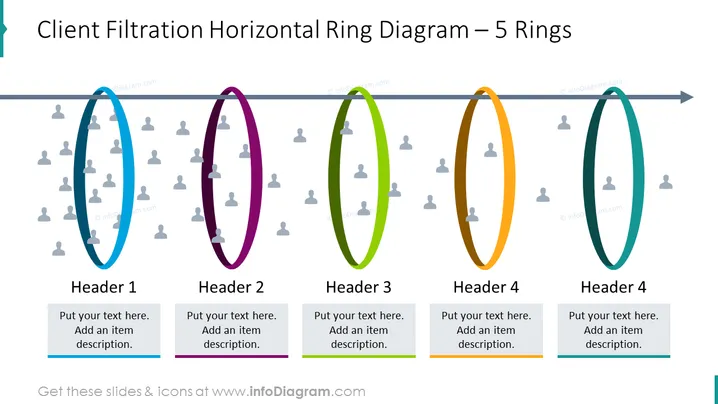
Client Filtration Horizontal Ring Diagram – 5 Rings
Slide Content
The slide presents a "Client Filtration Horizontal Ring Diagram – 5 Rings" used for depicting stages or categories in a process, with a progression indicated by an arrow. Each ring represents a different phase (Header 1 to Header 4, with Header 4 duplicated) in a sequence, with a place for a brief description. The rings provide a platform for customizing text to align with specific processes, ideal for filtering or segmentation concepts in a business context, showing the narrowing down of criteria or selection through different stages.
Graphical Look
- The slide has a light background with a horizontal progression arrow spanning from left to right.
- There are five rings, each with a unique color (blue, purple, green, orange, and teal).
- Inside each ring, there are multiple icons of a simplified person, shaded in a lighter tone than the ring's color.
- Below each ring, there's a text box for a header and additional item description.
- The progression arrow has a darker shade at the end, creating a directional effect.
- The visual elements have a flat design aesthetic with no gradients or shadows.
The overall look of the slide is clean and modern, with a business-like feel due to its systematic layout and use of simple icons. The color-coded rings help distinguish different stages or categories effectively.
Use Cases
- To visually represent stages in a customer journey or sales pipeline.
- For illustrating the process of client selection or segmentation in a marketing presentation.
- As a tool for discussing the filtration of ideas, concepts, or strategies during a business strategy session.
- To showcase the workflow or progression in project management and operational processes.
How to Edit
How to edit text & colors

How to expand / shorten diagram

How to Replace Icons in infoDiagram PPT


