
Reviews
Your graphics add a nice touch to my presentations and I recently used them for one of my all-hands meetings. Your toolbox adds professionalism to my slides. Instead of using standard clipart.
I needed a fresh look at some of my slides. I've tried to find a way to create a paintbrush effect, to underline, accentuate, add some color and the handwritten markers were just the things. Very easy to use, easy to size, change the color. It was an affordable, perfect solution and I'm happy to recommend it.
The crisp, clean look of the graphics, and the fact that it allowed me to easily edit and change the colors to match the template was my main reason for purchasing them.
Description
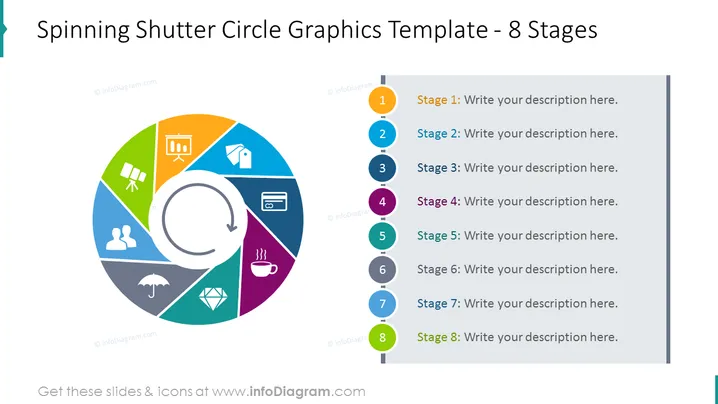
Spinning Shutter Circle Graphics Template - 8 Stages
Slide Content
The slide displays a circular diagram with eight segments, each representing a stage in a process or cycle. The segments are color-coded, with a numbered marker corresponding to text boxes on the right, which are placeholders for descriptions specific to each stage. A circular arrow inside the diagram suggests a cycle or a repetitive process, thus indicating that the graphics could be used for explaining processes that are continuous or cyclical in nature.
Graphical Look
- A large circular diagram with a spinning shutter-like design dominates the left side of the slide.
- Each segment of the circular diagram is a different color, creating a visually appealing rainbow effect.
- Inside the circular diagram, there is a white circular arrow pointing clockwise, reinforcing the idea of motion or cyclicity.
- To the right of the circular diagram, there is a vertical series of numbered circular icons, with a color corresponding to each segment of the diagram.
- Text placeholders adjacent to each circular icon provide an area to add the description for each stage.
- The background of the slide is solid white, which helps the colorful elements stand out.
The overall look of the slide is modern and dynamic, with a clear focus on the circular diagram which facilitates the representation of stages, steps, or sequences in a process. The use of color and icons aids in visual differentiation of each segment.
Use Cases
- Business Process Presentations: To represent a business process or workflow with eight distinct stages, steps, or milestones.
- Training Materials: To illustrate a multi-stage training program where each stage builds upon the previous one.
- Project Management: To communicate the phases of a project lifecycle in a visual and engaging manner.
- Marketing Strategies: To outline various stages of a marketing campaign from concept to execution and evaluation.
How to Edit
How to edit text & colors

How to expand / shorten diagram

How to Replace Icons in infoDiagram PPT


