
Reviews
Your graphics add a nice touch to my presentations and I recently used them for one of my all-hands meetings. Your toolbox adds professionalism to my slides. Instead of using standard clipart.
I needed a fresh look at some of my slides. I've tried to find a way to create a paintbrush effect, to underline, accentuate, add some color and the handwritten markers were just the things. Very easy to use, easy to size, change the color. It was an affordable, perfect solution and I'm happy to recommend it.
The crisp, clean look of the graphics, and the fact that it allowed me to easily edit and change the colors to match the template was my main reason for purchasing them.
Description
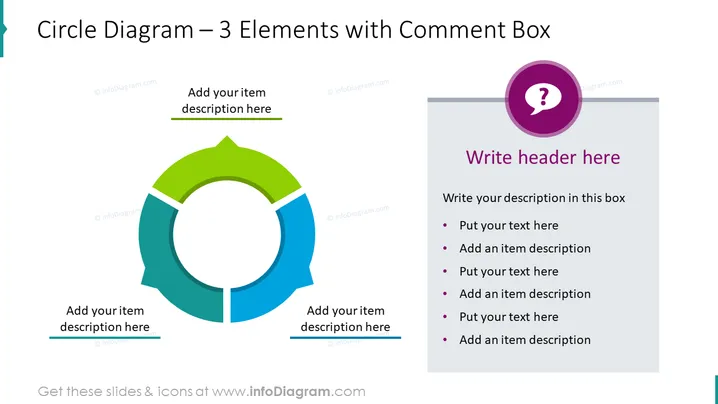
Circle Diagram – 3 Elements with Comment Box
Slide Content
The PowerPoint slide presents a circular diagram with three segments, each in a different color, suggesting a continuous process or relationship between the elements. Placeholder text prompts the presenter to add descriptions for each item. Additionally, there is a comment box with a question mark icon on the right side of the slide, indicating a space for additional remarks or queries and including bullet points for detailed information or steps related to the circular diagram components.
Graphical Look
- The slide background is plain white, providing a clean and unobtrusive canvas.
- A circular diagram dominates the left side of the slide, composed of three connected segments in shades of green, blue, and dark teal.
- Each segment of the circle has a small text box, aligned horizontally, with prompt text for adding descriptions.
- The right side contains a large gray text box with a white header that says "Write header here".
- Inside the gray text box, there are six bullet points with placeholder text for additional details.
- A purple speech bubble with a large white question mark is overlaid on the top right corner of the gray text box.
The slide is organized and balanced with a bold, clear diagram to represent connectivity or stages, and a structured text area for elaboration. The color palette is minimal and professional, with a pop of purple to draw attention to the comment or question section.
Use Cases
- To illustrate a three-step process or cycle in a business presentation.
- For displaying the interconnectivity of three core components of a project, business model, or organizational structure.
- As a visual aid during strategy meetings to discuss the relationship between various departments, phases, or key initiatives.
- To provide an overview of a concept with room for detailed explanations and questions during a training session or workshop.
How to Edit
How to edit text & colors

How to expand / shorten diagram

How to Replace Icons in infoDiagram PPT


