
Reviews
Your graphics add a nice touch to my presentations and I recently used them for one of my all-hands meetings. Your toolbox adds professionalism to my slides. Instead of using standard clipart.
I needed a fresh look at some of my slides. I've tried to find a way to create a paintbrush effect, to underline, accentuate, add some color and the handwritten markers were just the things. Very easy to use, easy to size, change the color. It was an affordable, perfect solution and I'm happy to recommend it.
The crisp, clean look of the graphics, and the fact that it allowed me to easily edit and change the colors to match the template was my main reason for purchasing them.
Description
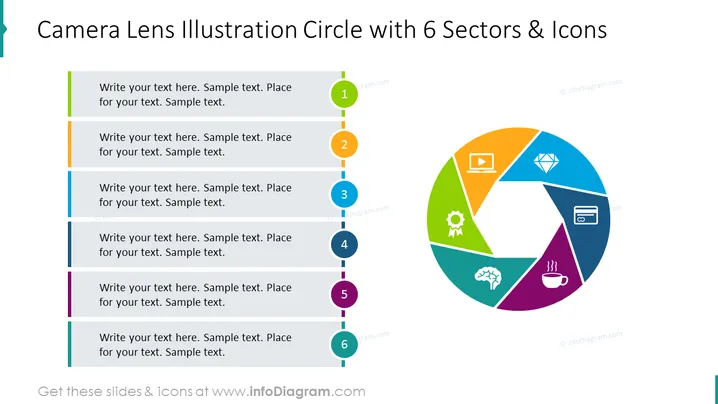
Camera Lens Illustration Circle with 6 Sectors & Icons
Slide Content
The slide presents a six-part segmented illustration reminiscent of a camera lens, with each segment containing an icon. The icons and their adjacent text areas suggest customizable content areas for different topics or ideas, such as multimedia, quality, innovation, strategy, analytics, and customer service.
- A play button icon represents multimedia or video-related content.
- A diamond icon could symbolize quality, value, or premium features.
- A gear icon signifies processes, innovation, or technical details.
- A brain icon stands for strategy, intelligence, or intellectual property.
- A graph icon indicates analytics, data, or financial information.
- A coffee cup icon represents comfort, customer service, or a relaxed corporate culture.
Graphical Look
- The slide has a clean, modern design with a bright color scheme.
- On the left, there's a vertical dotted line with six colored circles, numbered from 1 to 6, each paired with a placeholder text box.
- On the right side, a circular diagram with six differently colored sectors corresponds to the colored circles on the left, each sector containing a unique icon.
- The icons inside the sectors are simple and stylized, and each reflects a specific concept or business area.
- The slide background is white, which makes the colorful elements stand out.
The overall look of the slide is professional, vibrant, and easy to interpret, with a clear visual connection between the text areas and the corresponding segments of the circular diagram.
Use Cases
- Demonstrating different components of a business model or strategy during company presentations.
- Visualizing stages of a process or workflow in project management meetings.
- Illustrating a range of services or product features to potential clients or stakeholders.
- Providing an overview of company values or focus areas in an employee onboarding session.
How to Edit
How to edit text & colors

How to expand / shorten diagram

How to Replace Icons in infoDiagram PPT


