
Reviews
Sus gráficos añaden un toque agradable a mis presentaciones y recientemente los usé para una de mis reuniones generales. Su conjunto de herramientas añade profesionalismo a mis diapositivas. En lugar de usar imágenes prediseñadas estándar.
Necesitaba un aspecto fresco para algunas de mis diapositivas. Había intentado encontrar una forma de crear un efecto de pincel, de subrayar, acentuar, añadir algo de color y los marcadores escritos a mano fueron justo lo que necesitaba. Muy fácil de usar, fácil de ajustar el tamaño, cambiar el color. Fue una solución asequible y perfecta, y estoy feliz de recomendarla.
El aspecto nítido y limpio de los gráficos, y el hecho de que me permitiera editar y cambiar fácilmente los colores para que coincidieran con la plantilla fue mi principal razón para comprarlos.
Description
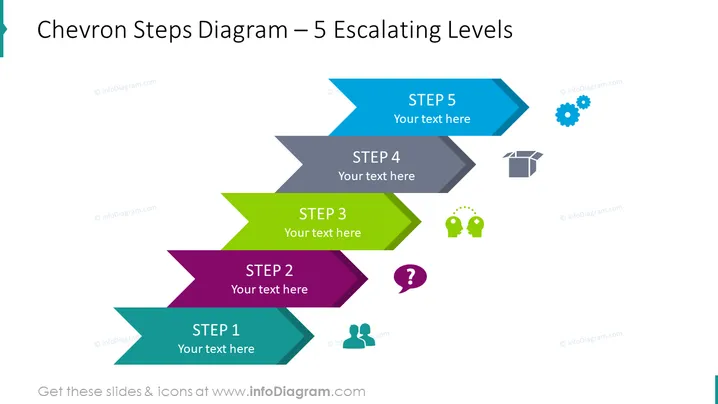
Chevron Steps Diagram – 5 Escalating Levels
Slide Content
The PowerPoint slide titled "Chevron Steps Diagram – 5 Escalating Levels" depicts a sequential process or a progression of five steps, each denoted by a distinctive chevron shape and a corresponding color. "STEP 1" is turquoise, hinting at the initial phase; "STEP 2" is purple, perhaps indicating a development stage; "STEP 3" is green, which could represent growth or a significant phase; "STEP 4" is gray, perhaps suggesting maturity or a phase of evaluation; and "STEP 5" is blue, likely illustrating the final or completion stage. Each step has a placeholder text indicating where to insert relevant descriptions.
Graphical Look
- The slide background is plain white which provides a clean and uncluttered backdrop for the content.
- Five chevron arrow shapes are arranged vertically in the center, creating a sense of progression from bottom to top.
- Each chevron is in a different color (from bottom to top: turquoise, purple, green, gray, blue) to visually separate the steps.
- The chevrons have a 3D effect due to the shadowing on their right side.
- Text labels "STEP 1" to "STEP 5" are aligned inside the wide part of each chevron.
- Simple, white, capitalized font is used for these labels.
- Gray placeholder text below each label indicates where additional information can be added.
- To the right of the chevrons, aligned with each step, are various icons:
- A pair of user silhouettes at the bottom, possibly representing collaboration or user input.
- A purple question mark, potentially symbolizing inquiry or analysis.
- Two green speech bubbles with quotation marks, suggesting communication or feedback.
- An open gray box, which might denote distribution or unpacking of content.
- Two blue gears, which often symbolize machinery, work in progress, or settings.
The overall look of the slide is modern and professional, with a gradient color scheme that creates visual interest and guides the viewer through the steps in a logical flow. The use of icons next to each step adds an additional layer of meaning and can help in quickly conveying the concept behind each stage.
Use Cases
- To illustrate a multi-step process or a workflow in a business presentation, where each step represents a particular phase of a project or a task.
- As a visual aid in training materials to outline the progression of learning modules or skill acquisition stages.
- For strategic planning sessions, to describe different stages in the implementation of a business strategy or new initiative.
- In marketing proposals, to show the customer journey or the stages of developing and launching a new product.
How to Edit
How to edit text & colors

How to expand / shorten diagram

How to Replace Icons in infoDiagram PPT


