
Reviews
Your graphics add a nice touch to my presentations and I recently used them for one of my all-hands meetings. Your toolbox adds professionalism to my slides. Instead of using standard clipart.
I needed a fresh look at some of my slides. I've tried to find a way to create a paintbrush effect, to underline, accentuate, add some color and the handwritten markers were just the things. Very easy to use, easy to size, change the color. It was an affordable, perfect solution and I'm happy to recommend it.
The crisp, clean look of the graphics, and the fact that it allowed me to easily edit and change the colors to match the template was my main reason for purchasing them.
Description
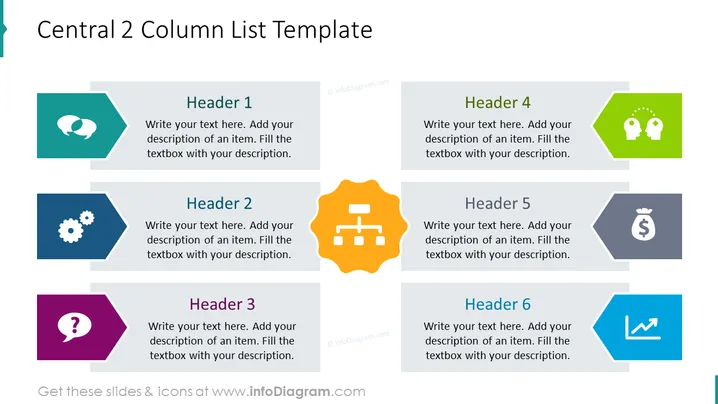
Central 2 Column List Template
Slide Content
The PowerPoint slide titled "Central 2 Column List Template" presents a structured way to compare or showcase six different items or ideas. The slide is divided into a two-column layout, each containing three elements. "Header 1" through "Header 3" on the left and "Header 4" through "Header 6" on the right allow for brief textual introductions followed by more detailed descriptions underneath. Each header is associated with a unique icon, suggesting that the slide is designed for a diverse set of topics or categories.
Graphical Look
- The slide background is white, providing a clean and unobtrusive base for the content.
- The title of the slide is in the upper portion, styled in bold, dark text.
- There are six arrow-shaped text boxes, three in each column, filled with different shades of blue and green.
- Each text box holds a unique, stylized icon at the head (chat bubble, gears, question mark, human heads, money bag, and chart).
- The icons are white, creating a stark contrast with the colored background of their respective text boxes.
- Each text box also includes placeholder text in the form of a header and description area.
- An orange hexagonal shape with a network diagram occupies the central space between the two columns.
The slide has a balanced and symmetrical design, with a mix of vibrant colors that attract attention without being overwhelming. It presents information in a clean, organized manner that's easy to follow.
Use Cases
- Outlining the key features or benefits of two competing products or services during a sales pitch or product demonstration.
- Comparing different strategic initiatives or performance metrics during a business review.
- Highlighting the roles and responsibilities of team members across two departments during a company meeting.
- Summarizing research findings or data points that fall into two distinct categories in an educational or training session.
How to Edit
How to edit text & colors

How to expand / shorten diagram

How to Replace Icons in infoDiagram PPT


