
Reviews
Your graphics add a nice touch to my presentations and I recently used them for one of my all-hands meetings. Your toolbox adds professionalism to my slides. Instead of using standard clipart.
I needed a fresh look at some of my slides. I've tried to find a way to create a paintbrush effect, to underline, accentuate, add some color and the handwritten markers were just the things. Very easy to use, easy to size, change the color. It was an affordable, perfect solution and I'm happy to recommend it.
The crisp, clean look of the graphics, and the fact that it allowed me to easily edit and change the colors to match the template was my main reason for purchasing them.
Description
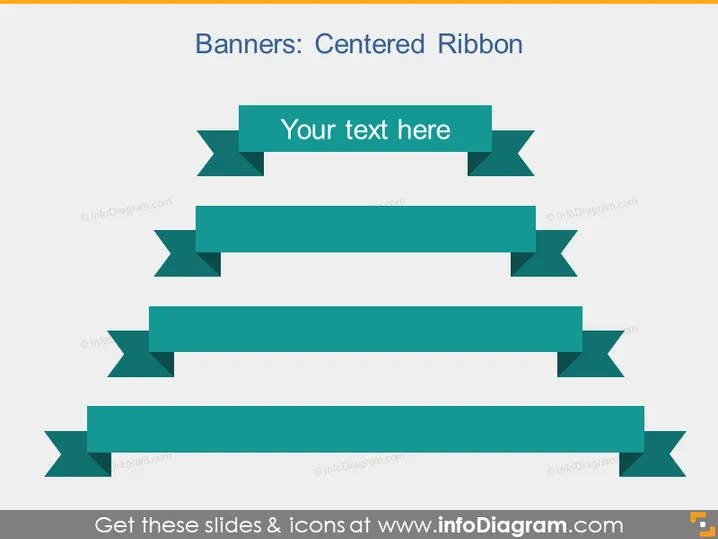
Banners: Centered Ribbon
Slide Content
The PowerPoint slide presents a design concept titled "Banners: Centered Ribbon," indicating a template for showcasing various pieces of information using center-aligned ribbon banners. Each ribbon banner is intended for custom text as indicated by the placeholder "Your text here," suggesting this slide can be used to highlight key points, steps in a process, or important data succinctly and visually.
Graphical Look
- The slide background is clean and plain white, which gives prominence to the graphical elements.
- Five teal-colored ribbon banners are horizontally aligned and evenly distributed across the slide.
- Each banner features a darker colored rectangle shape in the center, where "Your text here" is written as a placeholder for custom content.
- The darker colored center rectangles have notched cuts on both ends, creating a ribbon-like effect.
- On both ends of the banners, there are ribbon 'tails' with a fold-over appearance.
- The banners vary slightly in length, adding a subtle dynamic to the design.
- There is a shadow effect applied to the banners to give a sense of depth.
The slide has a simple and modern appearance, with a monochromatic color scheme that emphasizes clarity and focus. The banners' design provides an aesthetic element while also serving a functional purpose to organize and display information effectively.
Use Cases
- To outline steps in a process or workflow during business presentations, where each step is clearly distinguished.
- For presenting key points or features of a product in marketing materials or sales pitches, where each banner highlights a unique selling proposition.
- To list achievements or milestones in company meetings, with each ribbon banner representing a different accomplishment.
- During educational or training sessions, it can be used to display categories or topics that will be discussed or taught.
How to Edit
How to edit text & colors

How to expand / shorten diagram

How to Replace Icons in infoDiagram PPT


