
Reviews
Your graphics add a nice touch to my presentations and I recently used them for one of my all-hands meetings. Your toolbox adds professionalism to my slides. Instead of using standard clipart.
I needed a fresh look at some of my slides. I've tried to find a way to create a paintbrush effect, to underline, accentuate, add some color and the handwritten markers were just the things. Very easy to use, easy to size, change the color. It was an affordable, perfect solution and I'm happy to recommend it.
The crisp, clean look of the graphics, and the fact that it allowed me to easily edit and change the colors to match the template was my main reason for purchasing them.
Description
4 Categories Data Percentage Charts
Slide Content
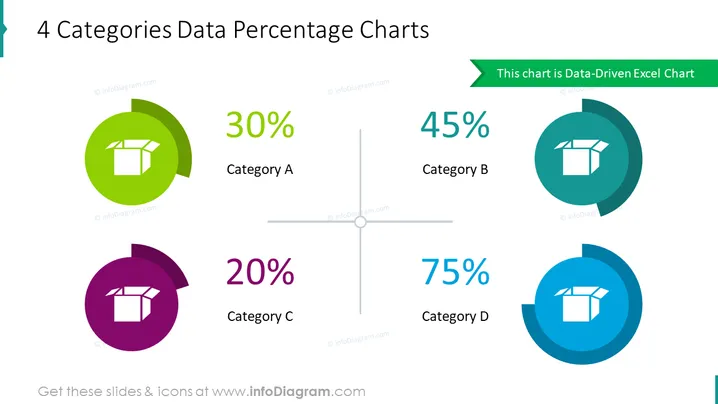
This PowerPoint slide represents percentage values for four distinct categories—A, B, C, and D—with varying proportions. Category A is associated with 30%, suggesting a modest but significant portion. Category B, at 45%, indicates it holds a major share. Category C has the smallest slice at 20%, which may reflect a minor segment or area of low focus. Finally, Category D dominates with a 75% share, highlighting it as the most substantial or prioritized category.
Graphical Look
- The slide has a clean white background with a central cross-axis.
- Four circular doughnut charts are placed towards the corners, each representing a category with its corresponding percentage.
- Each chart has a distinct color—green for Category A, darker teal for Category B, purple for Category C, and blue for Category D.
- A white icon of a box is placed in the middle of each doughnut chart, maintaining a consistent visual theme.
- The percentage values are prominently displayed in a large font, making the data immediately clear.
- Beside each percentage, the category label is displayed in a matching color to its respective chart.
- A green ribbon at the top right contains the text "This chart is Data-Driven Excel Chart," which emphasizes the data's source.
The overall look of the slide is modern and visually pleasing, with a good use of color to differentiate between categories. The use of doughnut charts with centered icons provides a simple yet effective way to visualize data proportions.
Use Cases
- Presenting market share distribution among different product categories in a business sales presentation.
- Illustrating the breakdown of budget allocations across different departments in a financial report.
- Showcasing the percentage of resources allocated to various projects in a project management update.
- Communicating customer segmentation or demographic data in a marketing strategy meeting.
How to Edit
How to edit text & colors

How to expand / shorten diagram

How to Replace Icons in infoDiagram PPT


