

Your graphics add a nice touch to my presentations and I recently used them for one of my all-hands meetings. Your toolbox adds professionalism to my slides. Instead of using standard clipart.
Claude Jones, Director of Engineer, @Walmartlabs, USA

Your graphics add a nice touch to my presentations and I recently used them for one of my all-hands meetings. Your toolbox adds professionalism to my slides. Instead of using standard clipart.
Claude Jones, Director of Engineer, @Walmartlabs, USA
I needed a fresh look at some of my slides. I've tried to find a way to create a paintbrush effect, to underline, accentuate, add some color and the handwritten markers were just the things. Very easy to use, easy to size, change the color. It was an affordable, perfect solution and I'm happy to recommend it.
Anonymous, US
The crisp, clean look of the graphics, and the fact that it allowed me to easily edit and change the colors to match the template was my main reason for purchasing them.
Brandie Jenkins, E-learning Developer, USA
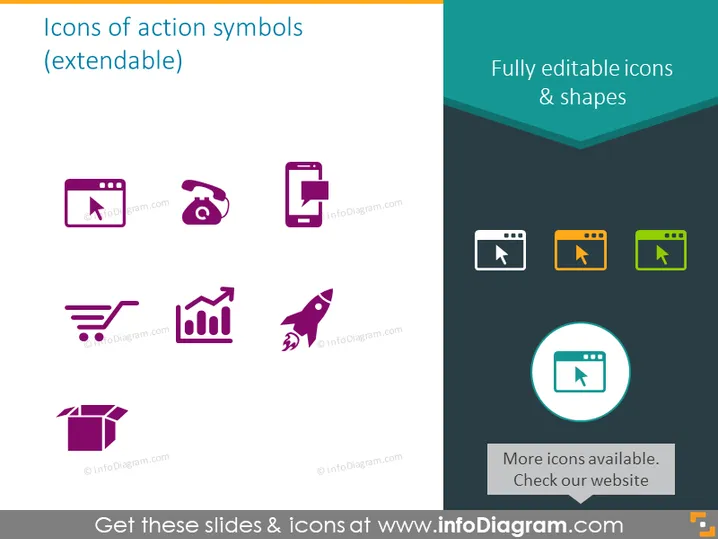
This PowerPoint slide displays a collection of icons representing various action symbols. These icons appear suitable for use in presentations to visually convey concepts: a browser window, telephone, mobile, shopping cart, growth chart, rocket, open box, and video play. Each of these symbols can be associated with actions like browsing, communication, mobile usage, shopping, increasing metrics, innovation or acceleration, unpacking or revealing, and multimedia engagement.
The slide features a minimalist design with brightly colored icons that stand out against the white background. The use of color is balanced, with contrasting purple, teal, orange, and green elements creating visual interest.



