
Reviews
Your graphics add a nice touch to my presentations and I recently used them for one of my all-hands meetings. Your toolbox adds professionalism to my slides. Instead of using standard clipart.
I needed a fresh look at some of my slides. I've tried to find a way to create a paintbrush effect, to underline, accentuate, add some color and the handwritten markers were just the things. Very easy to use, easy to size, change the color. It was an affordable, perfect solution and I'm happy to recommend it.
The crisp, clean look of the graphics, and the fact that it allowed me to easily edit and change the colors to match the template was my main reason for purchasing them.
Description
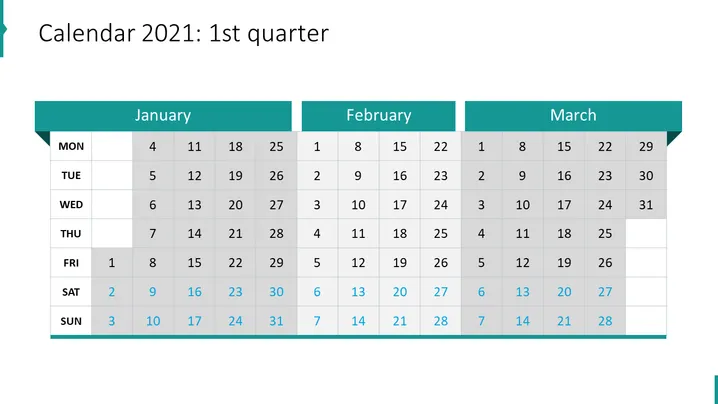
Calendar 2021: 1st quarter
Slide Content
The slide presents a calendar for the first quarter of 2021, detailing the months of January, February, and March. Each month shows dates with specific days highlighted to represent four distinct projects. Project 1 is signified by a teal square, Project 2 by an orange square, Project 3 by a purple square, and Project 4 by a green square. Days involved in the projects are marked in their respective colors, indicating when a project is active or scheduled. Additionally, some dates are circled to emphasize particular days, likely key dates or milestones within the projects.
Graphical Look
- Background: A photograph of a blurred office setting with items such as a laptop, paperwork, and possibly personal effects.
- Title: Bold, capitalized text aligned to the left in a light font color, making it stand out against the darker background.
- Monthly headers: Three colored bars—teal, indigo, and light blue—each with white capitalized text indicating the month.
- Date grid: A translucent dark overlay containing white text for days of the week and dates. Some cells are highlighted to correspond with the project colors mentioned earlier.
- Project keys: Four colored squares (teal, orange, purple, green), each with a label indicating a project number, placed at the bottom of the slide.
- Circles: Two circles in a light outline appear over dates on the calendar grid, which helps to draw attention to those specific days.
The overall aesthetic of the slide is modern and business-like, with a clear, functional design that uses color to differentiate tasks or projects. The visual elements are well-organized, enabling easy reading and quick comprehension of the schedule.
Use Cases
- To present project timelines during a business meeting, illustrating when different projects will be initiated and highlighting key milestones.
- For strategic planning sessions where team leads can assign and discuss deadlines, ensuring that all team members understand the schedule.
- To review progress in project management updates where visual representation aids in tracking the advancement of multiple projects simultaneously.
- In a monthly or quarterly company-wide presentation to provide an overview of upcoming projects and their respective timelines to keep all staff informed.
How to Edit
How to edit text & colors

How to expand / shorten diagram

How to Replace Icons in infoDiagram PPT


