
Reviews
Your graphics add a nice touch to my presentations and I recently used them for one of my all-hands meetings. Your toolbox adds professionalism to my slides. Instead of using standard clipart.
I needed a fresh look at some of my slides. I've tried to find a way to create a paintbrush effect, to underline, accentuate, add some color and the handwritten markers were just the things. Very easy to use, easy to size, change the color. It was an affordable, perfect solution and I'm happy to recommend it.
The crisp, clean look of the graphics, and the fact that it allowed me to easily edit and change the colors to match the template was my main reason for purchasing them.
Description
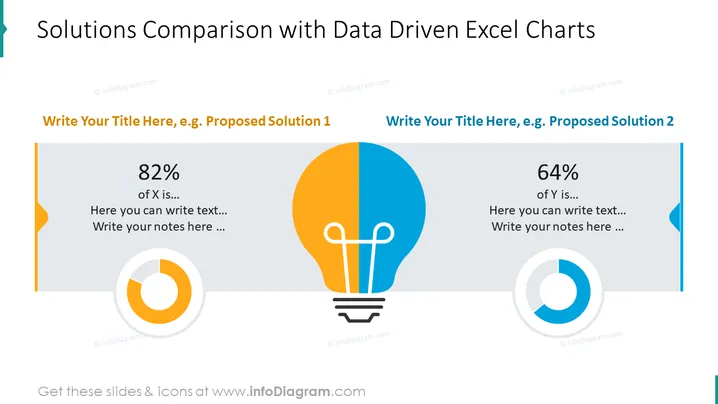
Solutions Comparison with Data Driven Excel Charts
Slide Content
The PowerPoint slide presents a comparative analysis of two solutions, each complemented with a data-driven Excel chart. The left side displays "Proposed Solution 1" with an 82% metric, accompanied by space for additional text and notes. The right side introduces "Proposed Solution 2" with a 64% metric, also providing areas to elaborate on the solution. Each section uses a circular chart to visually underscore the percentage data, indicating varying degrees of completion or success.
Graphical Look
- Slide background is white with a blue ribbon on top where the slide title is.
- Two main content blocks visually divided by a central gray line.
- Each block has a placeholder for a title, a large percentage figure, and additional text fields.
- Circular Excel charts located at the bottom of each block, colored to match the theme.
- An icon of a light bulb with a half-orange, half-blue split design placed between the two blocks.
- The left block has a yellow-orange color scheme, while the right has blue.
The slide uses a clean and professional design with contrasting color schemes to differentiate between the two solutions. The central light bulb icon serves as both a thematic element related to innovation and a visual separator of content.
Use Cases
- Presenting comparative data between two business strategies or product solutions in a management meeting.
- Showcasing progress reports on different projects to stakeholders during a review.
- Utilizing in a sales pitch to compare the advantages of two competitive products or services.
- Evaluating performance metrics of two teams or departments within an organization during internal presentations.
How to Edit
How to edit text & colors

How to expand / shorten diagram

How to Replace Icons in infoDiagram PPT


