
Reviews
Sus gráficos añaden un toque agradable a mis presentaciones y recientemente los usé para una de mis reuniones generales. Su conjunto de herramientas añade profesionalismo a mis diapositivas. En lugar de usar imágenes prediseñadas estándar.
Necesitaba un aspecto fresco para algunas de mis diapositivas. Había intentado encontrar una forma de crear un efecto de pincel, de subrayar, acentuar, añadir algo de color y los marcadores escritos a mano fueron justo lo que necesitaba. Muy fácil de usar, fácil de ajustar el tamaño, cambiar el color. Fue una solución asequible y perfecta, y estoy feliz de recomendarla.
El aspecto nítido y limpio de los gráficos, y el hecho de que me permitiera editar y cambiar fácilmente los colores para que coincidieran con la plantilla fue mi principal razón para comprarlos.
Description
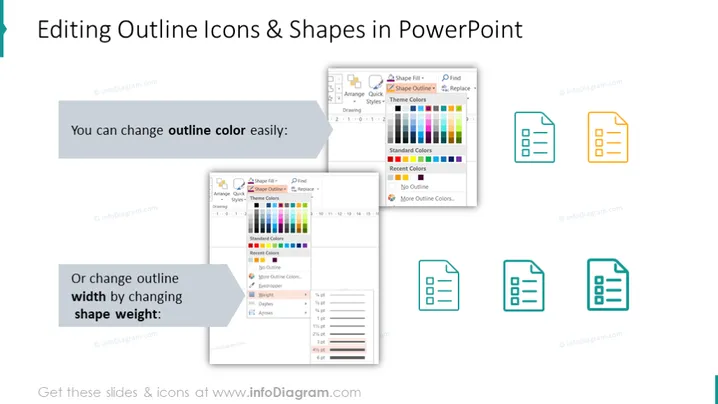
Editing Outline Icons & Shapes in PowerPoint
Slide Content
The slide introduces simple ways to edit outline icons and shapes in PowerPoint, focusing on customizing their appearance. It states that you can change the outline color easily, implying a user-friendly color selection process within the software. Additionally, it demonstrates how the outline width can be adjusted by changing the shape weight, indicating that PowerPoint allows controlling the thickness of the outlines to enhance visibility or add style.
Graphical Look
- The slide features a clean and modern design with a white background and a mix of gray and colorful elements.
- The title text is large, bold, and set against a light teal banner, creating a clear focal point at the top.
- Two text boxes with light gray backgrounds and dark text describe editing actions: changing the outline color and width.
- Visual step-by-step instructions are provided via two screenshot images placed near the corresponding text.
- Four sets of icon examples are showcased on the right side, demonstrating the effects of the changes mentioned.
- The icons are line drawings of a document, with each set showing a progression in the outline color intensity and width.
The slide has a clean layout that balances text, images, and icons to convey information effectively. The use of light colors and ample white space gives it a professional look, suitable for instructional purposes.
Use Cases
- To instruct employees on how to customize presentations to adhere to brand guidelines.
- In a workshop about enhancing visual communication with better PowerPoint design techniques.
- During a training session for new hires to familiarize them with the company's preferred presentation tools.
- As part of an educational course on graphic design or office productivity software.
How to Edit
How to edit text & colors

How to expand / shorten diagram

How to Replace Icons in infoDiagram PPT


