
Reviews
Sus gráficos añaden un toque agradable a mis presentaciones y recientemente los usé para una de mis reuniones generales. Su conjunto de herramientas añade profesionalismo a mis diapositivas. En lugar de usar imágenes prediseñadas estándar.
Necesitaba un aspecto fresco para algunas de mis diapositivas. Había intentado encontrar una forma de crear un efecto de pincel, de subrayar, acentuar, añadir algo de color y los marcadores escritos a mano fueron justo lo que necesitaba. Muy fácil de usar, fácil de ajustar el tamaño, cambiar el color. Fue una solución asequible y perfecta, y estoy feliz de recomendarla.
El aspecto nítido y limpio de los gráficos, y el hecho de que me permitiera editar y cambiar fácilmente los colores para que coincidieran con la plantilla fue mi principal razón para comprarlos.
Description
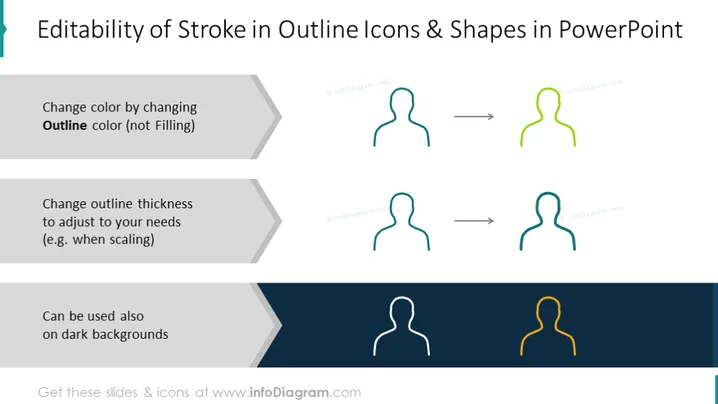
Editability of Stroke in Outline Icons & Shapes in PowerPoint
Slide Content
The slide presents the concept of "Editability of Stroke in Outline Icons & Shapes in PowerPoint" by illustrating three key features. The first feature is the ability to change the color by altering the outline color, not the filling, which suggests that the outline of the icons can have their colors changed separately from the interior. The second point explains that outline thickness can be changed to adjust to your needs, such as when scaling, indicating that the stroke weight can be modified for better visibility or style. Lastly, it shows that these icons and shapes are also adaptable for use on dark backgrounds, demonstrating versatility in design for contrasting backgrounds.
Graphical Look
- The title uses a large, bold, sans-serif font, clearly identifying the topic of the slide.
- Three sets of outline icons of a person's upper body are displayed horizontally in a row to illustrate the changes being described.
- Arrows are used to indicate the transition from the original state to the modified state for each outlined icon.
- Different background colors are used to differentiate the examples: white for the first two and navy blue for the last one.
- The text describing the features is aligned to the left in a standard sans-serif font and uses contrast through bolding the word "Outline" to emphasize the key point.
The overall look of the slide is clean and professional. The use of simple graphics and contrasting colors makes the information easy to understand and visually engaging.
Use Cases
- To teach users how to customize icons and shapes in PowerPoint presentations.
- In a workshop or tutorial focused on PowerPoint design and editing techniques.
- As part of a training session on improving visual impact in presentation materials.
- During a webinar about advanced PowerPoint functions and tips for creating more dynamic presentations.
How to Edit
How to edit text & colors

How to expand / shorten diagram

How to Replace Icons in infoDiagram PPT


