

Your graphics add a nice touch to my presentations and I recently used them for one of my all-hands meetings. Your toolbox adds professionalism to my slides. Instead of using standard clipart.
Claude Jones, Director of Engineer, @Walmartlabs, USA

Your graphics add a nice touch to my presentations and I recently used them for one of my all-hands meetings. Your toolbox adds professionalism to my slides. Instead of using standard clipart.
Claude Jones, Director of Engineer, @Walmartlabs, USA
I needed a fresh look at some of my slides. I've tried to find a way to create a paintbrush effect, to underline, accentuate, add some color and the handwritten markers were just the things. Very easy to use, easy to size, change the color. It was an affordable, perfect solution and I'm happy to recommend it.
Anonymous, US
The crisp, clean look of the graphics, and the fact that it allowed me to easily edit and change the colors to match the template was my main reason for purchasing them.
Brandie Jenkins, E-learning Developer, USA
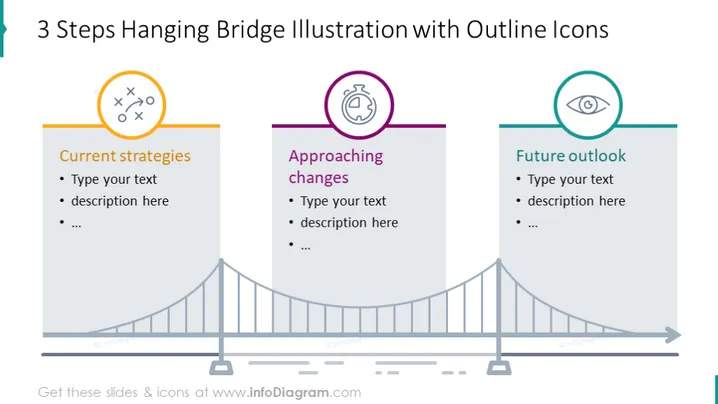
The slide presents a metaphorical three-step process using a hanging bridge illustration, enhanced with outline icons. The first pillar, labeled "Current strategies," suggests the present status or tactics in use, hinting at a foundational assessment phase. "Approaching changes," the second pillar, implies forthcoming adjustments or strategic shifts, indicating a phase of preparing for transition. Lastly, "Future outlook" represents the final stage, where the focus turns to long-term visions or consequences, suggesting a forward-thinking conclusion.
The slide has a minimalistic design, with a visually engaging bridge illustration acting as the centerpiece. The color-coding and icons effectively delineate the three distinct phases or steps of a process.



