
Reviews
Your graphics add a nice touch to my presentations and I recently used them for one of my all-hands meetings. Your toolbox adds professionalism to my slides. Instead of using standard clipart.
I needed a fresh look at some of my slides. I've tried to find a way to create a paintbrush effect, to underline, accentuate, add some color and the handwritten markers were just the things. Very easy to use, easy to size, change the color. It was an affordable, perfect solution and I'm happy to recommend it.
The crisp, clean look of the graphics, and the fact that it allowed me to easily edit and change the colors to match the template was my main reason for purchasing them.
Description
Input to Multiple Stages Distribution Split Arrow – 3 Outputs
Slide Content
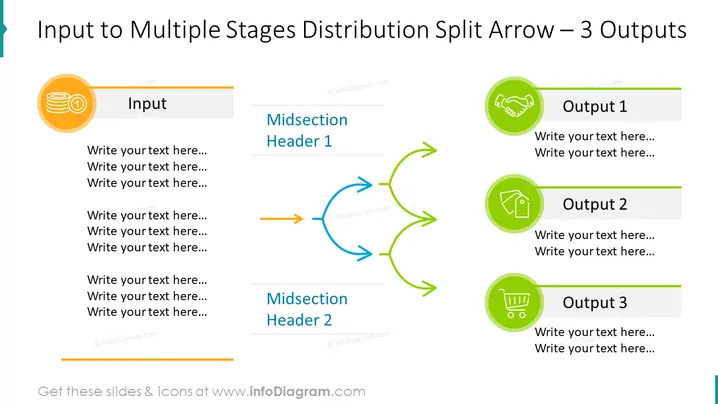
The PowerPoint slide "Input to Multiple Stages Distribution Split Arrow – 3 Outputs" presents a process or concept where a single input is distributed into three distinct outputs. The slide has placeholders for text under each section: Input, Output 1, Output 2, and Output 3, where detailed information about each step can be added. The split arrow graphic between the input and outputs symbolizes the flow or transformation from one stage to multiple outcomes, which may represent steps in a workflow, decision outcomes, or data distribution.
Graphical Look
- The slide background is white.
- Title "Input to Multiple Stages Distribution Split Arrow – 3 Outputs" is displayed at the top in large, bold, black font.
- There's an orange circle icon with an image of stacked coins on the left labeled "Input".
- Three green circular icons on the right side, labeled "Output 1", "Output 2", and "Output 3", respectively. Each icon has a different image: a handshake, a house, and a shopping cart.
- Each icon is connected to corresponding placeholder text boxes with headers.
- There are two midsection headers in the center labeled "Midsection Header 1" and "Midsection Header 2".
- Curved arrows, blue and green in color, originate from the input icon and split toward the three output icons.
- A horizontal orange line accents the bottom of the input text area, and similar green lines highlight the bottoms of the text areas for the outputs.
The slide uses a clean and straightforward layout with colorful icons and curved arrows to capture visual interest and direct the viewer's attention through the process flow. The contrast between the orange input section and the green output sections helps to differentiate the beginning of the process from the possible outcomes.
Use Cases
- Illustrating the distribution of resources or information from one source to multiple endpoints in a business plan or project proposal.
- Visualizing product or service diversification strategies in marketing presentations.
- Explaining decision-making processes with multiple potential outcomes in management or team meetings.
- Demonstrating the flow of a workflow or process that splits into several distinct paths in training materials.
How to Edit
How to edit text & colors

How to expand / shorten diagram

How to Replace Icons in infoDiagram PPT


