
Reviews
Your graphics add a nice touch to my presentations and I recently used them for one of my all-hands meetings. Your toolbox adds professionalism to my slides. Instead of using standard clipart.
I needed a fresh look at some of my slides. I've tried to find a way to create a paintbrush effect, to underline, accentuate, add some color and the handwritten markers were just the things. Very easy to use, easy to size, change the color. It was an affordable, perfect solution and I'm happy to recommend it.
The crisp, clean look of the graphics, and the fact that it allowed me to easily edit and change the colors to match the template was my main reason for purchasing them.
Description
Blackboard PowerPoint template
Slide Content
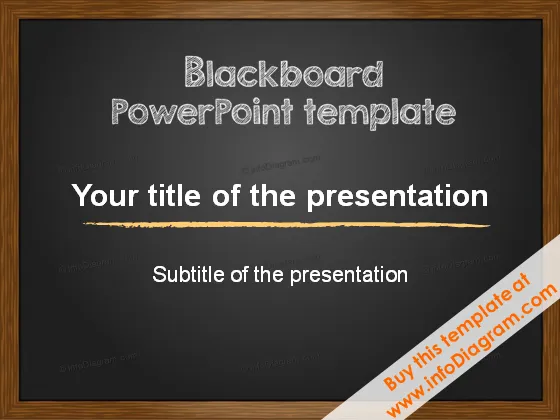
The slide serves as a title page for a presentation, offering spaces for the presentation's title and subtitle, which need to be customized by the presenter. As placeholders, the text reads "Your title of the presentation" to indicate where the main topic should be inserted, and "Subtitle of the presentation" to suggest adding a secondary descriptive phrase or a summary of the presentation's theme.
Graphical Look
- The slide's background texture resembles a blackboard, giving it an educational or academic feel.
- The main title "Blackboard PowerPoint template" is displayed at the top in a stylized white font that mimics chalk writing.
- Below the main title, there is a horizontal chalk-like scribble that acts as an underlining element.
- The central part of the slide displays two text placeholders for customization:
- "Your title of the presentation" in a large bold font
- "Subtitle of the presentation" beneath it in a smaller font
- Both text placeholders are aligned centrally and are designed to mimic the look of being written in chalk.
- The slide is framed by a wooden textured border that enhances the blackboard appearance.
The slide overall mimics a classroom blackboard with a modern twist through its textured background and wooden frame, centered by clean white text placeholders to introduce a presentation.
Use Cases
- Introducing educational or training session topics in an academic or corporate setting.
- Setting a creative theme for workshops focusing on brainstorming or innovation.
- Beginning a presentation for school administrators, teachers, or educators during professional development meetings.
- Kickstarting a session or seminar that adopts a back-to-school or learning concept theme.
How to Edit
How to edit text & colors

How to expand / shorten diagram

How to Replace Icons in infoDiagram PPT


