
Reviews
Your graphics add a nice touch to my presentations and I recently used them for one of my all-hands meetings. Your toolbox adds professionalism to my slides. Instead of using standard clipart.
I needed a fresh look at some of my slides. I've tried to find a way to create a paintbrush effect, to underline, accentuate, add some color and the handwritten markers were just the things. Very easy to use, easy to size, change the color. It was an affordable, perfect solution and I'm happy to recommend it.
The crisp, clean look of the graphics, and the fact that it allowed me to easily edit and change the colors to match the template was my main reason for purchasing them.
Description
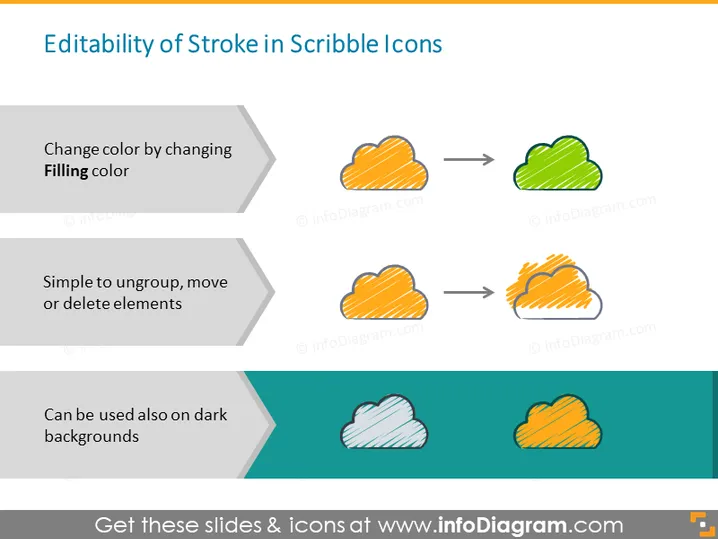
Editability of Stroke in Scribble Icons
Slide Content
The slide title, "Editability of Stroke in Scribble Icons," suggests that the slide will discuss how the stroke in scribble-style icons can be edited. There are three points listed: "Change color by changing Filling color," which implies you can alter the icon's appearance by modifying the fill color; "Simple to ungroup, move or delete elements," indicating the icons are easily adjustable for customization; and "Can be used also on dark backgrounds," suggesting that these icons maintain visual integrity on various background tones.
Graphical Look
- The slide title is in large, bold text, placed at the top.
- There are three main content sections, each with a descriptive text and a pair of icons.
- The descriptive text for each point is inside a horizontally aligned rectangle with a chevron pattern on the left edge.
- Each pair of icons illustrates the text's point; before and after visuals showing the icon's editability.
- Arrows between the icon pairs indicate transformation or action.
- The slide background is white, with the bottom featuring a dark teal strip.
- All the text is black, which contrasts well against the light background.
The overall look of the slide is clean and professional, with a clear focus on the visual representation of the icons' editability. The use of arrows and color changes effectively illustrates the key points.
Use Cases
- To showcase the flexibility of design elements during a graphic design or branding presentation.
- In a training session, demonstrating how to work with editable vector icons in presentation software.
- During a product demo to highlight the adaptability of a design tool that includes such icons.
- To visually support points about user interface customization in a presentation about software development or web design.
How to Edit
How to edit text & colors

How to expand / shorten diagram

How to Replace Icons in infoDiagram PPT


