
Reviews
Your graphics add a nice touch to my presentations and I recently used them for one of my all-hands meetings. Your toolbox adds professionalism to my slides. Instead of using standard clipart.
I needed a fresh look at some of my slides. I've tried to find a way to create a paintbrush effect, to underline, accentuate, add some color and the handwritten markers were just the things. Very easy to use, easy to size, change the color. It was an affordable, perfect solution and I'm happy to recommend it.
The crisp, clean look of the graphics, and the fact that it allowed me to easily edit and change the colors to match the template was my main reason for purchasing them.
Description
Icons: Location Pins and Flags
Slide Content
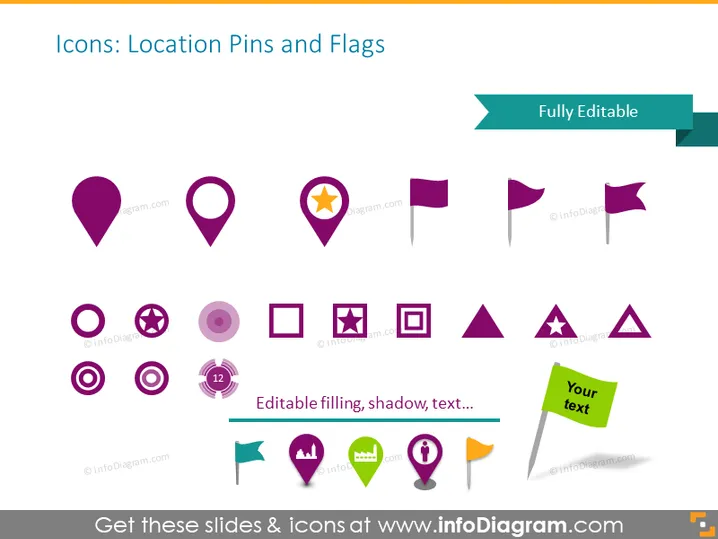
The PowerPoint slide presents a collection of icons related to location pins and flags, indicating that they are fully editable. There are various styles of location pins, some with simple circular designs, others with inner icons such as a star or different geometric shapes. Flags are depicted in different styles as well, some resembling traditional flags, while others have a more modern, pin-like appearance. A text box in the lower right suggests that the text on the icons can be edited.
Graphical Look
- A collection of stylized location pin and flag icons are evenly distributed across the slide.
- The color palette consists primarily of purple, teal, and green hues.
- Each icon has a distinctly modern and clean aesthetic.
- An emphasized icon in the bottom center is complimented by a text label "Editable filling, shadow, text..."
- There is a teal-colored ribbon in the top right corner labeled "Fully Editable".
- The slide has a white background which contrasts with the colorful icons.
- Icons vary in size and design, providing visual interest.
- Some icons feature additional graphical elements, such as stars or circles, to signify different types of locations or importance.
The slide has a professional and polished look with a clean, minimalistic design. The use of color is strategic, drawing attention to specific icons and providing a cohesive visual experience.
Use Cases
- To visually represent different locations or points of interest in a business presentation.
- For customizing map graphics in a marketing presentation to pinpoint store locations, service areas, or events.
- In an educational setting to help illustrate geographic concepts or historical events.
- As part of a user interface design presentation to showcase icon options for apps or websites involving maps or navigation.
How to Edit
How to edit text & colors

How to expand / shorten diagram

How to Replace Icons in infoDiagram PPT


