
Reviews
Your graphics add a nice touch to my presentations and I recently used them for one of my all-hands meetings. Your toolbox adds professionalism to my slides. Instead of using standard clipart.
I needed a fresh look at some of my slides. I've tried to find a way to create a paintbrush effect, to underline, accentuate, add some color and the handwritten markers were just the things. Very easy to use, easy to size, change the color. It was an affordable, perfect solution and I'm happy to recommend it.
The crisp, clean look of the graphics, and the fact that it allowed me to easily edit and change the colors to match the template was my main reason for purchasing them.
Description
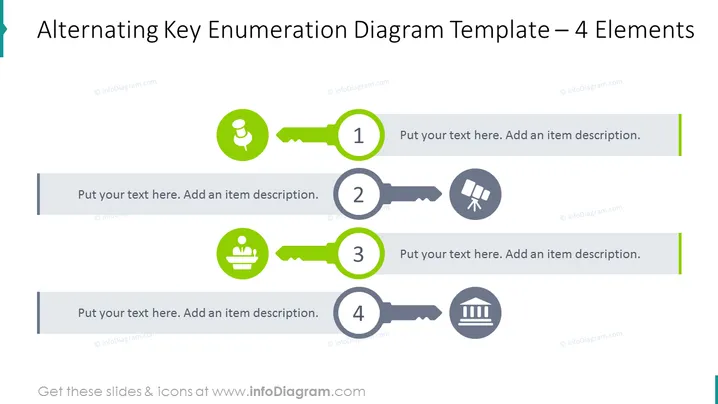
Alternating Key Enumeration Diagram Template – 4 Elements
Slide Content
The slide presents an "Alternating Key Enumeration Diagram" with 4 elements. Each element is represented by a key icon with a distinct central graphic, suggesting different concepts or topics. Accompanying each key is a circular label with a number, ranging from 1 to 4 and space for a description text. The sequential numbers imply a process or a set of items that are related and important for the subject at hand.
Graphical Look
- Four key icons in alternating colors (green and gray) with varying central symbols.
- Circular numbered labels (1 through 4) overlaying the left side of each key.
- A placeholder text box below each icon pair for item descriptions.
- Horizontal divider lines separating the description text boxes.
- Color-coordinated side borders that match the key icons above them (green lines for keys 1 and 3, and a light shade of gray for keys 2 and 4).
- The slide background is white, offering a stark contrast to the colorful elements.
- Flat design style is used for the graphics fostering a modern and clean aesthetic.
The overall look is clean and professional with a well-organized layout. The use of color coding and simple iconography makes the slide easy to follow and understand at a glance.
Use Cases
- To present a step-by-step process or sequential steps in a business project or plan.
- For illustrating key components or features of a product or service in a marketing presentation.
- To highlight major milestones or achievements in a company update or a status report.
- When describing the phases of a workflow or a set of procedural guidelines in a training or instructional setting.
How to Edit
How to edit text & colors

How to expand / shorten diagram

How to Replace Icons in infoDiagram PPT


