
Reviews
Ihre Grafiken verleihen meinen Präsentationen eine nette Note, und ich habe sie kürzlich für eines meiner All-Hands-Meetings verwendet. Ihre Toolbox verleiht meinen Folien Professionalität, anstatt Standard-Clipart zu verwenden.
Ich brauchte einen neuen Blick auf einige meiner Folien. Ich habe versucht, einen Weg zu finden, einen Pinselschlag-Effekt zu erzielen, um zu unterstreichen, hervorzuheben, Farbe hinzuzufügen, und die handgeschriebenen Markierungen waren genau das Richtige. Sehr einfach zu bedienen, leicht in der Größe zu ändern, die Farbe zu ändern. Es war eine erschwingliche, perfekte Lösung und ich empfehle sie gerne weiter.
Die klare, saubere Optik der Grafiken und die Tatsache, dass ich die Farben leicht bearbeiten und an die Vorlage anpassen konnte, war mein Hauptgrund für den Kauf.
Description
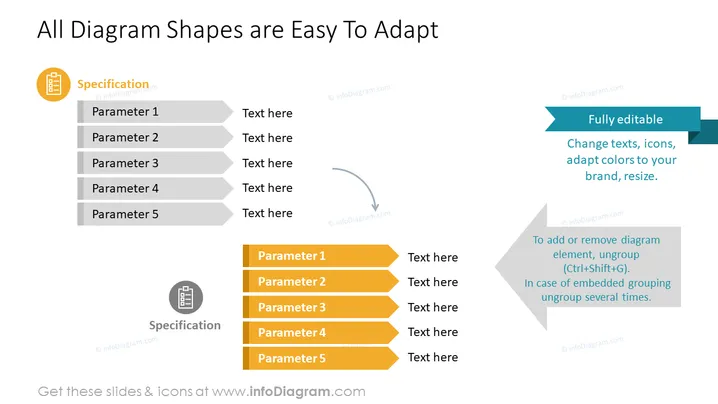
All Diagram Shapes are Easy To Adapt
Slide Content
The slide illustrates how diagram shapes can be easily customized. It compares two specifications lists side by side. Each list contains five parameters with a placeholder text "Text here" next to each parameter, showcasing the simplicity of editing the content. Parameter 1 through Parameter 5 are likely examples of elements within a system or project that can be defined according to a user's needs. "Fully editable" suggests that all aspects of the diagram can be manipulated, while additional notes provide concise instructions on how to edit the diagram in PowerPoint, including text, icon, and size adjustments, as well as ungrouping steps for more complex modifications.
Graphical Look
- The slide background is white.
- The title "All Diagram Shapes are Easy To Adapt" is placed at the top in a large, dark font.
- Two sets of specification lists are depicted, one on the left side and one on the right side of the slide.
- The left list uses shaded horizontal rectangles, while the right list uses arrowhead-shaped elements in a bright color.
- A curved gray arrow pointing from the left list to the right list symbolizes the transformation or adaptation process between the two.
- An icon representing "Specification" is positioned above both lists; it resembles a document with lines, indicating content or data.
- To the right, three callout boxes with tips on how to edit the diagrams are located, staggered and layered for visual interest.
- The fonts are sans-serif, ensuring readability and a modern appearance.
The slide has a clean and professional look, using a mix of shapes, colors, and icons to represent information. The design is minimalistic, focusing on clarity and ease of understanding.
Use Cases
- To illustrate step-by-step customization processes in training or instructional presentations.
- During sales or marketing presentations to show the versatility of a product.
- In project management meetings to demonstrate how work items or tasks can be adapted for specific needs .
- In software development presentations to explain how various components of a system can be configured or modified.
How to Edit
How to edit text & colors

How to expand / shorten diagram

How to Replace Icons in infoDiagram PPT


