
Reviews
Sus gráficos añaden un toque agradable a mis presentaciones y recientemente los usé para una de mis reuniones generales. Su conjunto de herramientas añade profesionalismo a mis diapositivas. En lugar de usar imágenes prediseñadas estándar.
Necesitaba un aspecto fresco para algunas de mis diapositivas. Había intentado encontrar una forma de crear un efecto de pincel, de subrayar, acentuar, añadir algo de color y los marcadores escritos a mano fueron justo lo que necesitaba. Muy fácil de usar, fácil de ajustar el tamaño, cambiar el color. Fue una solución asequible y perfecta, y estoy feliz de recomendarla.
El aspecto nítido y limpio de los gráficos, y el hecho de que me permitiera editar y cambiar fácilmente los colores para que coincidieran con la plantilla fue mi principal razón para comprarlos.
Description
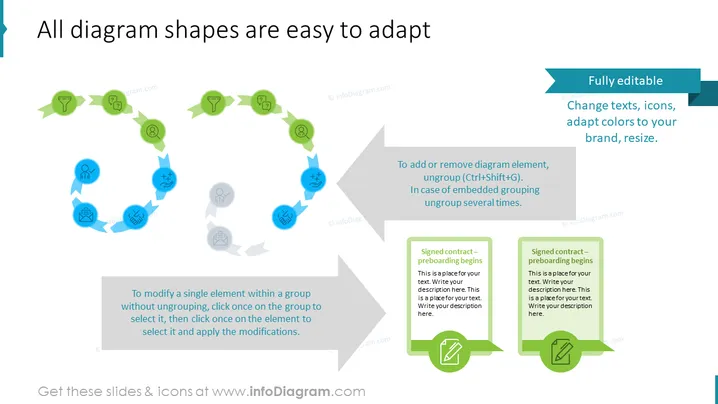
All diagram shapes are easy to adapt
Slide Content
The PowerPoint slide demonstrates the flexibility and editability of diagram shapes in a presentation. It emphasizes how users can change texts, icons, adapt colors to match their brand, and resize elements as needed. The slide includes instructions for modifying individual elements within a group without ungrouping, and provides steps to add or remove diagram elements through ungrouping. Example text boxes show where users can place their own descriptive text, suggesting a template for a process or workflow.
Graphical Look
- A large circular arrow diagram composed of six icon-labeled step elements dominates the left half of the slide.
- The text instructions are presented in two speech bubble-like shapes in the mid-right section.
- Two example text boxes with instructional prompts are positioned at the lower right side of the slide.
- The slide background is white, which helps the blue and green highlighted elements stand out.
- Each circular arrow step element has an icon representative of actions or objects such as a lightbulb for ideas and a magnifying glass for search.
The slide has a clean, professional design with a visually appealing color scheme. The use of icons and contrasting colors makes it easy to differentiate between various elements and steps within the process diagram.
Use Cases
- Presenting an editable workflow or process diagram in a business strategy or operations meeting.
- Customizing a slide for a brand presentation by adapting the diagram elements to match the company's color scheme.
- Training employees on how to use PowerPoint effectively to modify presentation templates.
- Showcasing the steps involved in a service or product development lifecycle in a pitch to stakeholders.
How to Edit
How to edit text & colors

How to expand / shorten diagram

How to Replace Icons in infoDiagram PPT


