
Reviews
Vos graphiques ajoutent une belle touche à mes présentations et je les ai récemment utilisés pour l'une de mes réunions générales. Votre boîte à outils ajoute du professionnalisme à mes diapositives. Au lieu d'utiliser des cliparts standards.
J'avais besoin d'un nouveau regard sur certaines de mes diapositives. J'ai essayé de trouver un moyen de créer un effet de pinceau, de souligner, d'accentuer, d'ajouter de la couleur et les marqueurs manuscrits étaient exactement ce qu'il fallait. Très facile à utiliser, facile à ajuster la taille, à changer la couleur. C'était une solution abordable et parfaite et je suis heureux de la recommander.
L'aspect net et épuré des graphiques, et le fait qu'il m'ait permis d'éditer et de changer facilement les couleurs pour les adapter au modèle, ont été les principales raisons de mon achat.
Description
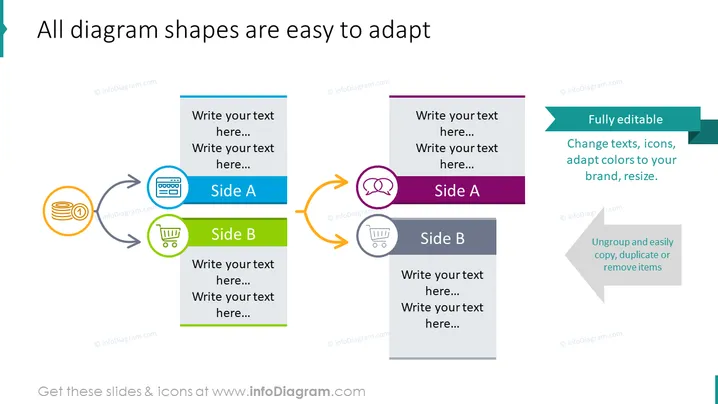
All diagram shapes are easy to adapt
Slide Content
The PowerPoint slide presents a demonstration of customizable diagram shapes for business presentations. It includes two sets labeled "Side A" and "Side B," each having a pair of connected icons implying a process or relationship between the two items. For instance, "Side A" may represent one phase or department, and "Side B" another, with arrows suggesting the flow of information or tasks.
Graphical Look
- The slide has a clean white background with two distinct sections separated by a vertical line.
- On the left, two pairs of colorful icons are connected by grey curved arrows. Each icon is encased in a circle.
- The first pair shows a stack of coins and a shopping cart, while the second has a computer display and a chat bubble.
- Each section has a text box with placeholders saying "Write your text here..." for user input.
- On the right, a rectangular callout in teal emphasizes the slide's editable features beneath a larger header.
- A light blue ribbon overlaps the callout, highlighting the ease of editing.
The slide exudes a professional and modern aesthetic with its simple icons and bold colors. Its design facilitates an uncluttered presentation of interconnected concepts or processes.
Use Cases
- To showcase business processes and workflows, visually demonstrating how different parts of a system interact.
- For training materials where step-by-step instructions or sequences need to be highlighted.
- In marketing presentations to compare products, features, or strategic approaches with competitors.
- During project management meetings to outline tasks and dependencies between different project elements.
How to Edit
How to edit text & colors

How to expand / shorten diagram

How to Replace Icons in infoDiagram PPT


