

Your graphics add a nice touch to my presentations and I recently used them for one of my all-hands meetings. Your toolbox adds professionalism to my slides. Instead of using standard clipart.
Claude Jones, Director of Engineer, @Walmartlabs, USA

Your graphics add a nice touch to my presentations and I recently used them for one of my all-hands meetings. Your toolbox adds professionalism to my slides. Instead of using standard clipart.
Claude Jones, Director of Engineer, @Walmartlabs, USA
I needed a fresh look at some of my slides. I've tried to find a way to create a paintbrush effect, to underline, accentuate, add some color and the handwritten markers were just the things. Very easy to use, easy to size, change the color. It was an affordable, perfect solution and I'm happy to recommend it.
Anonymous, US
The crisp, clean look of the graphics, and the fact that it allowed me to easily edit and change the colors to match the template was my main reason for purchasing them.
Brandie Jenkins, E-learning Developer, USA
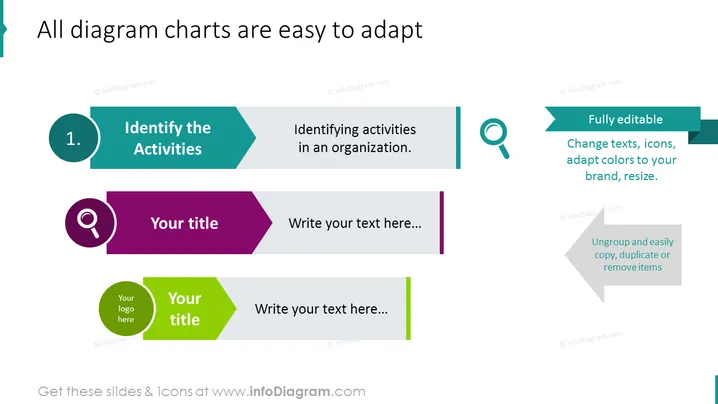
The slide is about the adaptability of diagram charts, emphasizing that they can be easily customized. There are three key features highlighted: "Identify the Activities," which is about recognizing tasks within an organization; "Fully editable," focusing on the capability to change text, icons, and adjust colors or sizes; and the third feature states that items can be "Ungrouped and easily copied, duplicated or removed," providing flexibility in editing the presentation elements.
The overall look of the slide is professional and organized, with a layout that guides the viewer's eye from left to right, ensuring that the information flow is logical and easy to follow.



