
Reviews
Your graphics add a nice touch to my presentations and I recently used them for one of my all-hands meetings. Your toolbox adds professionalism to my slides. Instead of using standard clipart.
I needed a fresh look at some of my slides. I've tried to find a way to create a paintbrush effect, to underline, accentuate, add some color and the handwritten markers were just the things. Very easy to use, easy to size, change the color. It was an affordable, perfect solution and I'm happy to recommend it.
The crisp, clean look of the graphics, and the fact that it allowed me to easily edit and change the colors to match the template was my main reason for purchasing them.
Description
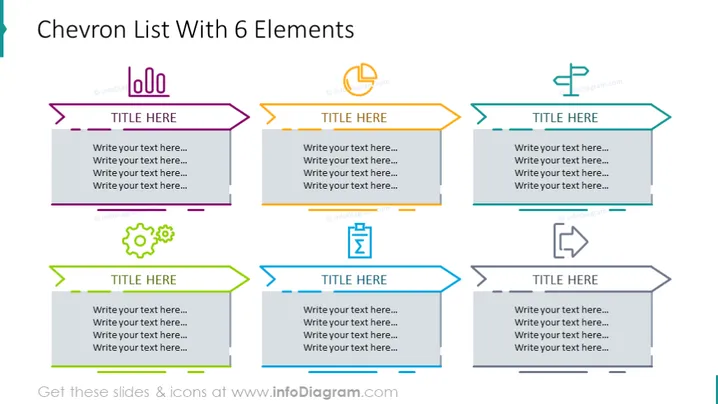
Chevron List With 6 Elements
Slide Content
The slide presents a six-part chevron list, a common format used for sequential steps or progress tracking. Each chevron contains a placeholder for a title and four lines for additional text, likely intended for a brief description or bullet points. The chevrons alternate in pointing right and left, creating a zig-zag effect, visually guiding the viewer through the sequence. The first and fourth chevrons have a gear icon and conversation icon respectively, suggesting these steps might involve processes or communication.
Graphical Look
-
Six chevron shapes aligned horizontally across the slide, alternating between pointing to the right and left. These chevrons are colored in pairs, with purple, orange, and teal as the primary colors.
-
Each chevron contains a grey rectangle for title placement which overlaps with the broader chevron structure.
-
Four lines of grey placeholder text are aligned within each chevron for descriptive content.
-
Two icons are present:
- A gear icon in the first chevron suggests a step involving a process or settings.
- A conversation bubble icon in the fourth chevron suggests communication or discussion.
-
Each chevron has a small graphic element on the left resembling a circular button with branding elements.
-
Horizontal lines, matching the colors of the chevrons, run along the top and bottom edges of the slide, framing the content area.
The slide has a clean and modern look, with a clear structure that's conducive to guiding the viewer's eye. The use of color and minimalist icons keeps the slide engaging without being overwhelming.
Use Cases
- Outlining a step-by-step business process or workflow in a clear, visually appealing manner.
- Showcasing a project timeline or phases in a training or informational presentation.
- Summarizing the key components of a strategy or plan during a business meeting.
- Demonstrating the stages of product development or service implementation to stakeholders.
How to Edit
How to edit text & colors

How to expand / shorten diagram

How to Replace Icons in infoDiagram PPT


