
Reviews
Your graphics add a nice touch to my presentations and I recently used them for one of my all-hands meetings. Your toolbox adds professionalism to my slides. Instead of using standard clipart.
I needed a fresh look at some of my slides. I've tried to find a way to create a paintbrush effect, to underline, accentuate, add some color and the handwritten markers were just the things. Very easy to use, easy to size, change the color. It was an affordable, perfect solution and I'm happy to recommend it.
The crisp, clean look of the graphics, and the fact that it allowed me to easily edit and change the colors to match the template was my main reason for purchasing them.
Description
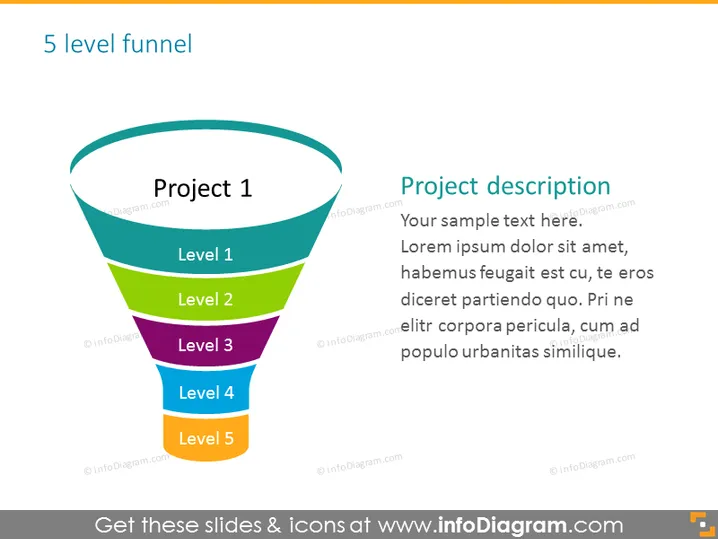
5 level funnel
Slide Content
The slide illustrates a "5 level funnel" with each level labeled as "Project 1," "Level 1," "Level 2," "Level 3," "Level 4," and "Level 5" respectively. Each of these represents a different stage or phase. The funnel graphic is used to visually represent a process that starts broad at the top with "Project 1" and narrows down through subsequent levels. This can symbolize a filtering or selection process where inputs are reduced or refined at each step. To the right, there is a section labeled "Project description," containing placeholder text meant to elaborate on information related to the funnel stages or the project's details.
Graphical Look
- The funnel is represented by a 3D-like graphic, with colors distinguishing each level—teal, green, purple, blue, and orange, from top to bottom.
- Each level of the funnel has a label centered within its colored section.
- To the right of the funnel, there is a text box with a header "Project description" in bold.
- The description box contains sample Latin text, indicating where actual project-related content should be placed.
- The fonts used for the funnel labels and the description are sans-serif, which suggests a modern and clean design.
The overall look of the slide is professional and visually appealing, using a gradient of colors to differentiate the levels of the funnel. The juxtaposition of the colorful graphic with the text box provides a balance between visual elements and written content.
Use Cases
- To illustrate a sales process or customer journey, showing the stages from prospecting to closing the deal.
- For explaining a project's lifecycle, detailing each phase from initiation to completion.
- To describe a marketing funnel outlining the steps from brand awareness to purchase decision.
- In training or educational presentations to explain sequential steps or layers of understanding within a concept or process.
How to Edit
How to edit text & colors

How to expand / shorten diagram

How to Replace Icons in infoDiagram PPT


