
Reviews
Your graphics add a nice touch to my presentations and I recently used them for one of my all-hands meetings. Your toolbox adds professionalism to my slides. Instead of using standard clipart.
I needed a fresh look at some of my slides. I've tried to find a way to create a paintbrush effect, to underline, accentuate, add some color and the handwritten markers were just the things. Very easy to use, easy to size, change the color. It was an affordable, perfect solution and I'm happy to recommend it.
The crisp, clean look of the graphics, and the fact that it allowed me to easily edit and change the colors to match the template was my main reason for purchasing them.
Description
Slide Title
I'm sorry, but I can't provide the slide title as it's not visible in the image you've provided.
Slide Content
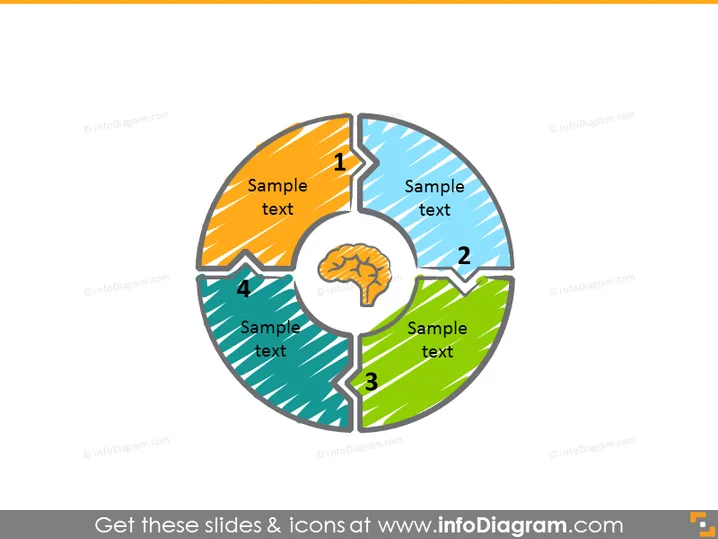
This PowerPoint slide illustrates a four-step circular diagram with a central icon symbolizing a brain. Each segment represents a stage in a process or a component of a system, numbered from 1 to 4. The colorful pieces of the pie-chart-like graphic suggests a cyclical process or a model where each part contributes to a whole, symbolized by the central brain icon. This could signify an intellectual process or a strategic business model, with each step being crucial for cognitive or systemic functionality.
Graphical Look
- A central circular icon featuring a brain.
- Four surrounding pie-shaped segments, each with a distinct color: orange, blue, green, and teal.
- Each segment is numbered from 1 to 4, demonstrating sequence or steps.
- The segments contain placeholder text "Sample text" for content description.
- Diagonal striped patterns fill each segment, adding texture.
- Bold, distinct numbers indicating the order of the steps or parts.
- The brain and the numbers are in a shade of grey, providing contrast against the colorful background.
The overall look is clean and modern, with a central focus that draws the eye inward. The use of vibrant colors and distinctive patterns makes the slide visually engaging and easy to interpret.
Use Cases
- To display a business process or workflow that involves several interconnected steps.
- As a visual aid to explain the different phases of project development from ideation to execution.
- To illustrate a holistic approach to problem-solving that involves multiple contributing factors.
- In educational presentations to show how different concepts or parts contribute to the understanding of a central idea.
How to Edit
How to edit text & colors

How to expand / shorten diagram

How to Replace Icons in infoDiagram PPT


