
Reviews
Your graphics add a nice touch to my presentations and I recently used them for one of my all-hands meetings. Your toolbox adds professionalism to my slides. Instead of using standard clipart.
I needed a fresh look at some of my slides. I've tried to find a way to create a paintbrush effect, to underline, accentuate, add some color and the handwritten markers were just the things. Very easy to use, easy to size, change the color. It was an affordable, perfect solution and I'm happy to recommend it.
The crisp, clean look of the graphics, and the fact that it allowed me to easily edit and change the colors to match the template was my main reason for purchasing them.
Description
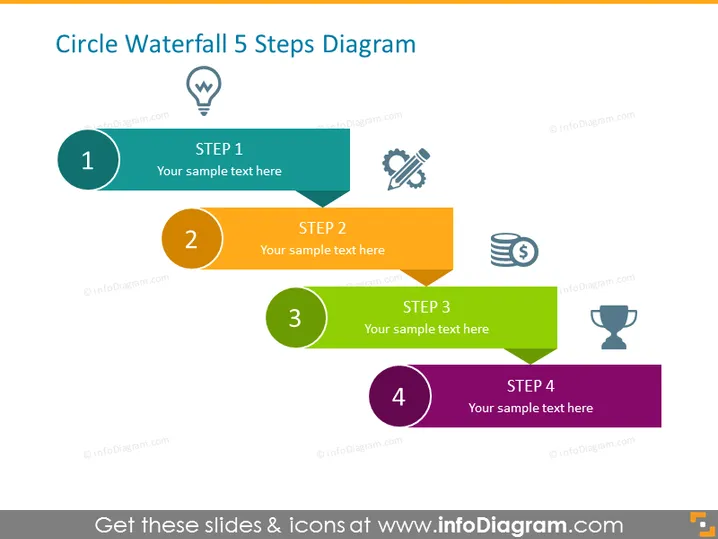
Circle Waterfall 5 Steps Diagram
Slide Content
The slide titled "Circle Waterfall 5 Steps Diagram" depicts a progression through five key steps, graphically represented as overlapping colorful banners with corresponding circular icons. Each step is marked by a unique color and number, and it is accompanied by a specific icon reflecting the essence of that step. The space next to each banner allows for an explanatory text, providing viewers with context or details about that particular stage in the process.
Graphical Look
- The slide features a bold title at the top, colored in dark grey text against a light background.
- Five horizontal banners in a variety of colors: teal, orange, green, dark purple, and lighter purple, represent sequential steps.
- Circular numbered icons corresponding to the steps, colored similarly to their respective banners.
- Icons with light grey silhouettes representing concepts like innovation, tools, finance, and achievement are placed near the top-right corner of their respective banners.
- Each banner has space for customizable text, signified by "Your sample text here."
- A drop shadow effect is applied to the banners, giving the appearance of a slight elevation above the slide background.
The slide has a clean and colorful design with a professional appearance. The color differentiation and use of icons help to distinguish each step clearly.
Use Cases
- Presenting a project timeline or phases of development in a business meeting.
- Outlining a step-by-step guide for implementing a new company strategy.
- Demonstrating the stages of a sales funnel or customer journey during a marketing presentation.
- Summarizing the workflow or stages of a process in a training session.
How to Edit
How to edit text & colors

How to expand / shorten diagram

How to Replace Icons in infoDiagram PPT


