

Your graphics add a nice touch to my presentations and I recently used them for one of my all-hands meetings. Your toolbox adds professionalism to my slides. Instead of using standard clipart.
Claude Jones, Director of Engineer, @Walmartlabs, USA

Your graphics add a nice touch to my presentations and I recently used them for one of my all-hands meetings. Your toolbox adds professionalism to my slides. Instead of using standard clipart.
Claude Jones, Director of Engineer, @Walmartlabs, USA
I needed a fresh look at some of my slides. I've tried to find a way to create a paintbrush effect, to underline, accentuate, add some color and the handwritten markers were just the things. Very easy to use, easy to size, change the color. It was an affordable, perfect solution and I'm happy to recommend it.
Anonymous, US
The crisp, clean look of the graphics, and the fact that it allowed me to easily edit and change the colors to match the template was my main reason for purchasing them.
Brandie Jenkins, E-learning Developer, USA
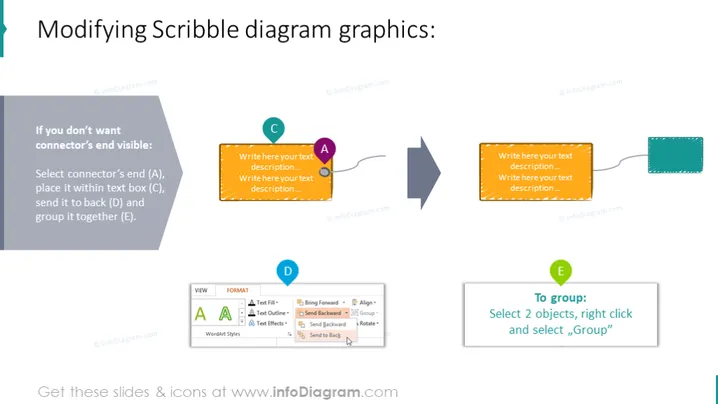
La diapositiva de PowerPoint titulada "Modificando Gráficos de Diagrama de Garabato" ofrece una guía paso a paso sobre cómo alterar la visibilidad de los extremos de los conectores dentro de los gráficos de diagrama. Sugiere seleccionar el extremo del conector (A), colocarlo dentro de un cuadro de texto (C), enviarlo al fondo (D) y agruparlo (E). Cada paso se amplía con una explicación; por ejemplo, 'Seleccionar el extremo del conector (A)' implica elegir el punto final que deseas modificar. 'Colocarlo dentro del cuadro de texto (C)' sugiere cubrir el punto final con un elemento textual. 'Enviar al fondo (D)' significa organizar las capas de modo que el extremo del conector esté detrás del cuadro de texto. 'Agruparlo (E)' se refiere a fusionar los elementos en un solo objeto para una manipulación más fácil.



