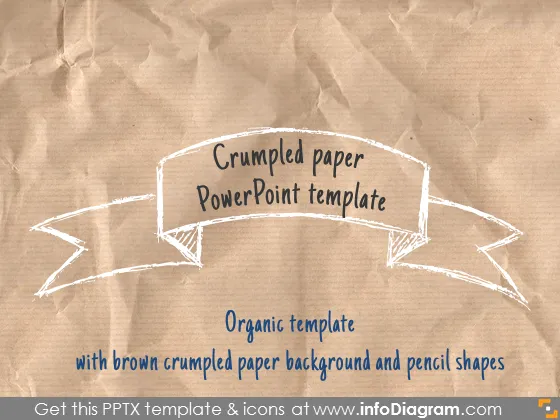
Cover and narrative setup
Usage example
Deck preview
What the deck looks like in practice
This template does not have a dedicated before/after case study, so we show the strongest slides from the actual deck instead.
Cover and narrative setup

Core structure and talking points
Description
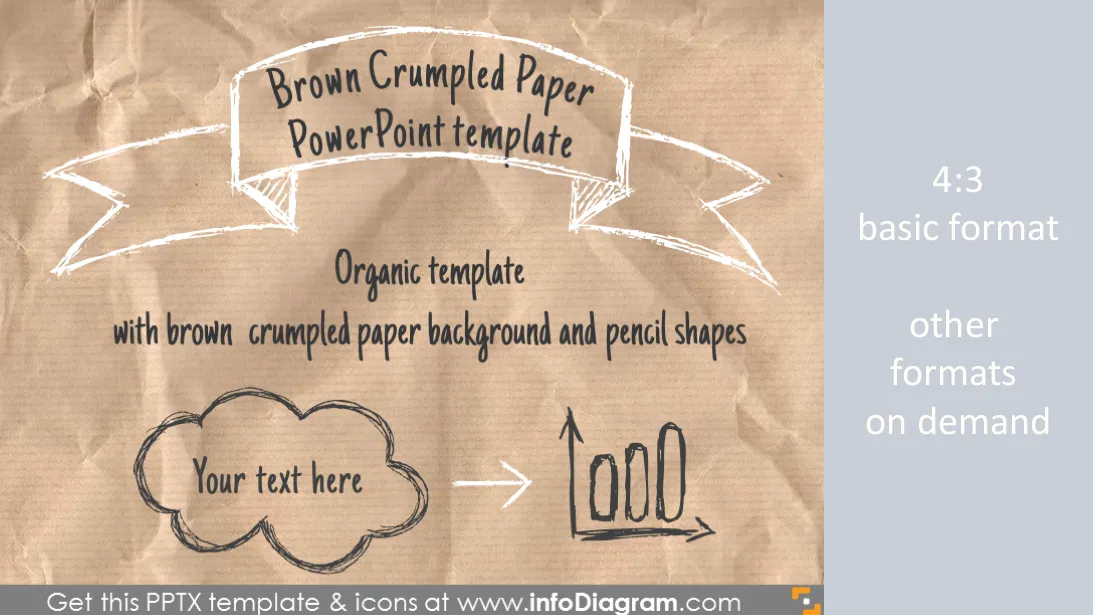
Brown Crumbled paper PowerPoint Template (PPTX version Office 2007,2010,2013) with pencil sketched shapes
- unique graphical background with 4 slide layouts: title, standard, transition, end slide
- pre-defined colors set inside the template (to give enough contrast and color harmony)
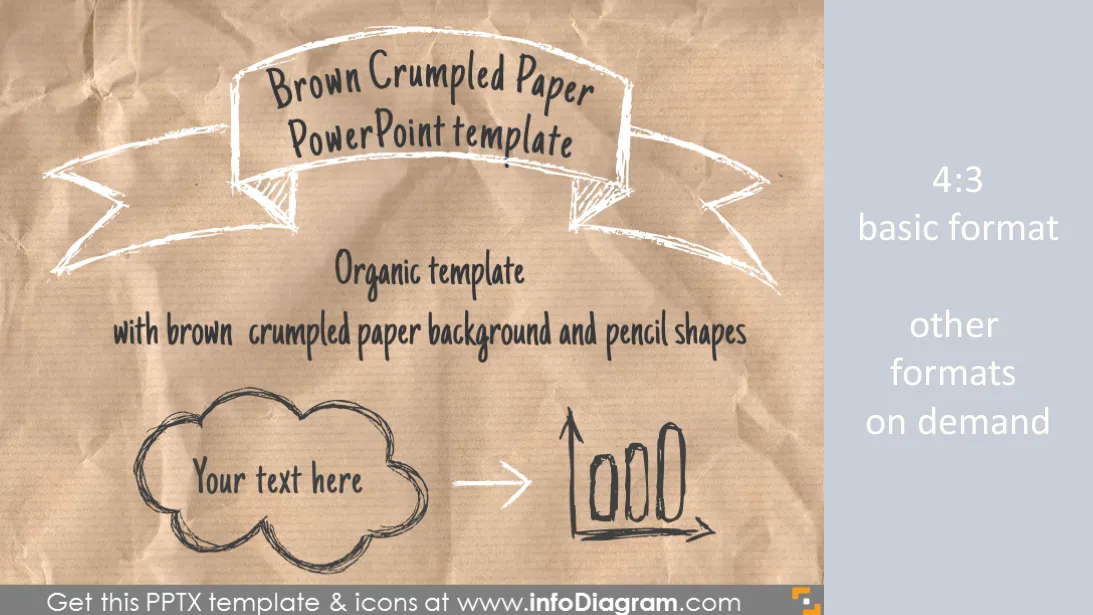
- cloud, arrow, chart pencil shapes fitting the old paper style
- examples of text and pictures content
Content:
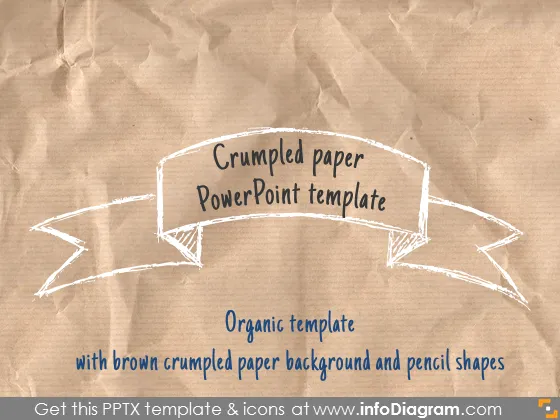
Organic brown crumbled paper PPTX presentation template for PowerPoint including hand drawn pencil doodled shapes and icons
Package content:
- Title slide layout - with doodle banner stripe
- Standard content slide layout, pencil doodle banner for slide title, one placeholder for text, chart, table, picture or SmartArt diagram
- Comparison layout - Two text columns with headline
- Transition slide layout – pencil ribbon banner for section title stripe
- End slide layout - Last Closing Slide with pencil ribbon stripe
- Set of pencil doodle shapes in various editable colors: dark blue, white, dark red
- Examples of using pencil shapes and banners for comparison diagram with cloud shape and arrows
Format: PPTX - Microsoft Office PowerPoint (Office 2007, 2010, 2013...)
Template customization on request e.g.
- adjusting style to your corporate identity
- more slide layouts, chart templates, pre-defined slide deck
- content face-lifting or visualization from scratch (text to diarams)
- other formats e.g. if you need older PPT format
Authors
- Design: Izabela Zvirinska, Contact via infoDiagram.com
Slides included in this PowerPoint Presentation:
Reviews
Ihre Grafiken verleihen meinen Präsentationen eine nette Note, und ich habe sie kürzlich für eines meiner All-Hands-Meetings verwendet. Ihre Toolbox verleiht meinen Folien Professionalität, anstatt Standard-Clipart zu verwenden.
Claude Jones, Leiter Entwicklung, @Walmartlabs, USA
Ich brauchte einen neuen Blick auf einige meiner Folien. Ich habe versucht, einen Weg zu finden, einen Pinselschlag-Effekt zu erzielen, um zu unterstreichen, hervorzuheben, Farbe hinzuzufügen, und die handgeschriebenen Markierungen waren genau das Richtige. Sehr einfach zu bedienen, leicht in der Größe zu ändern, die Farbe zu ändern. Es war eine erschwingliche, perfekte Lösung und ich empfehle sie gerne weiter.
Anonymous, US
Die klare, saubere Optik der Grafiken und die Tatsache, dass ich die Farben leicht bearbeiten und an die Vorlage anpassen konnte, war mein Hauptgrund für den Kauf.
Brandie Jenkins, E-Learning-Entwickler, USA
How to Edit
How to edit text & colors

How to expand / shorten diagram

How to Replace Icons in infoDiagram PPT

You may also need