


Cover and narrative setup


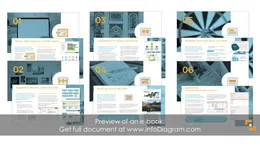
Deck preview
This template does not have a dedicated before/after case study, so we show the strongest slides from the actual deck instead.
Cover and narrative setup

Core structure and talking points
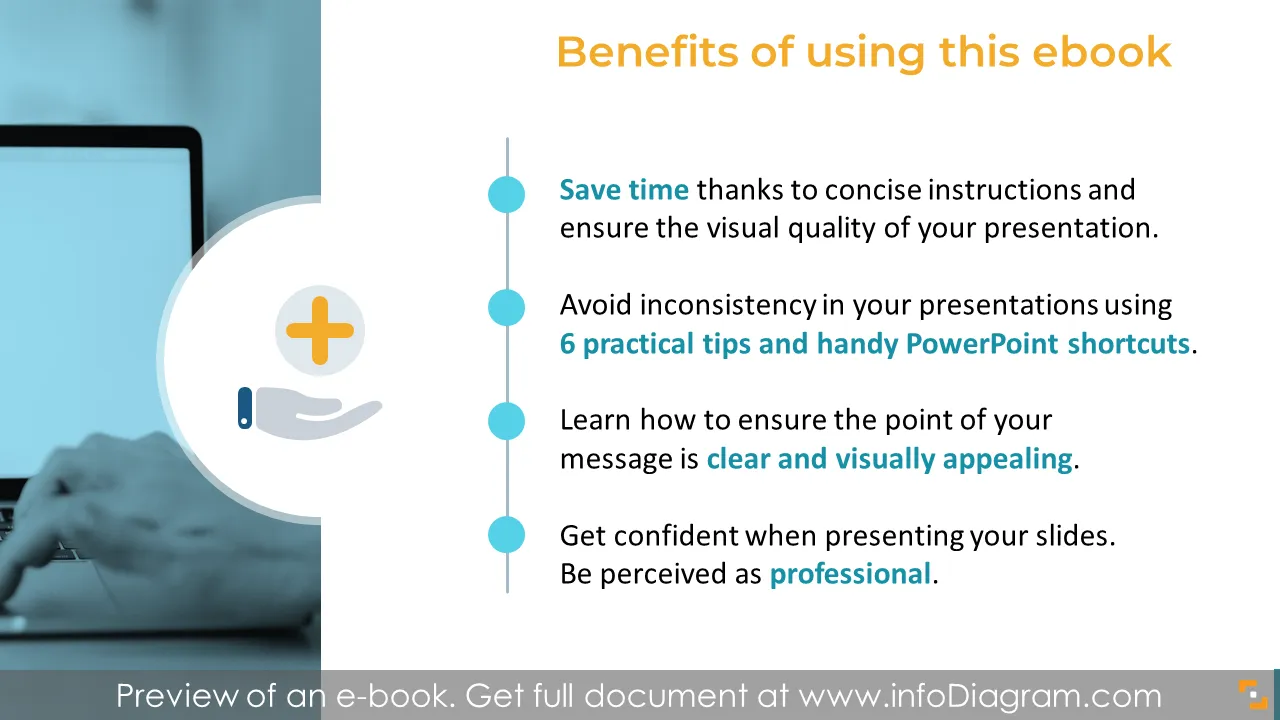
Polished visual slide from the deck
Are you preparing an important presentation? Make sure everything on slide is in the right place and supports your message.
Our chief designers wrote an e-book with six critical design tips to be checked before you show or send your presentation. We added also practical PowerPoint shortcuts, that will speed up your work.
Use this checklist to ensure every slide looks professional and readable.
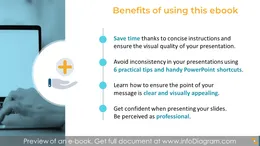
This e-book contains:

Your graphics add a nice touch to my presentations and I recently used them for one of my all-hands meetings. Your toolbox adds professionalism to my slides. Instead of using standard clipart.
Claude Jones, Director of Engineer, @Walmartlabs, USA
I needed a fresh look at some of my slides. I've tried to find a way to create a paintbrush effect, to underline, accentuate, add some color and the handwritten markers were just the things. Very easy to use, easy to size, change the color. It was an affordable, perfect solution and I'm happy to recommend it.
Anonymous, US
The crisp, clean look of the graphics, and the fact that it allowed me to easily edit and change the colors to match the template was my main reason for purchasing them.
Brandie Jenkins, E-learning Developer, USA



You may also need