Cover and narrative setup
Usage example
Deck preview
What the deck looks like in practice
This template does not have a dedicated before/after case study, so we show the strongest slides from the actual deck instead.
Cover and narrative setup

Core structure and talking points
Polished visual slide from the deck
Description
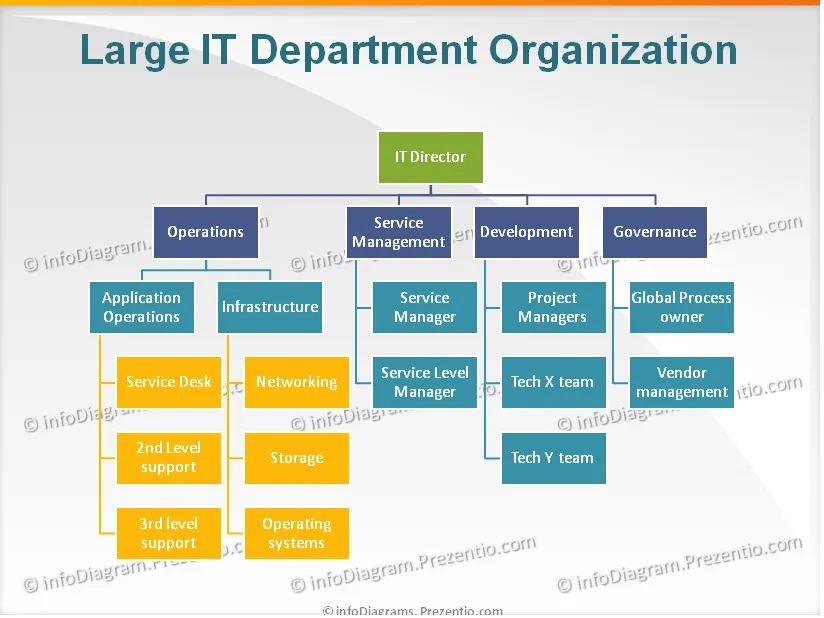
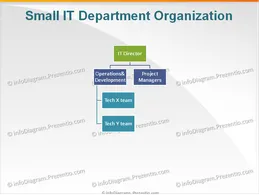
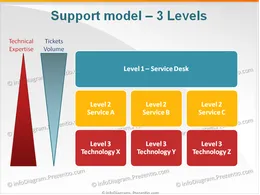
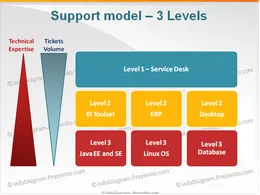
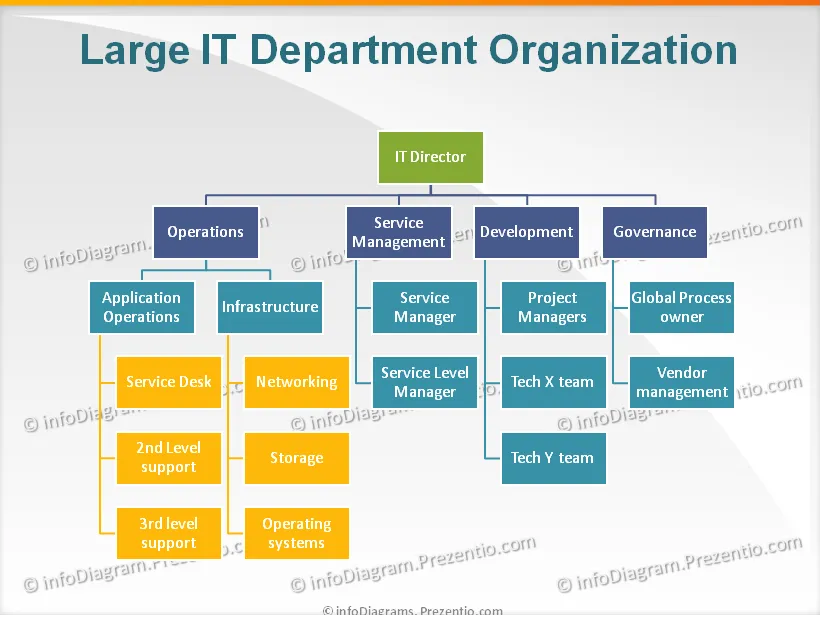
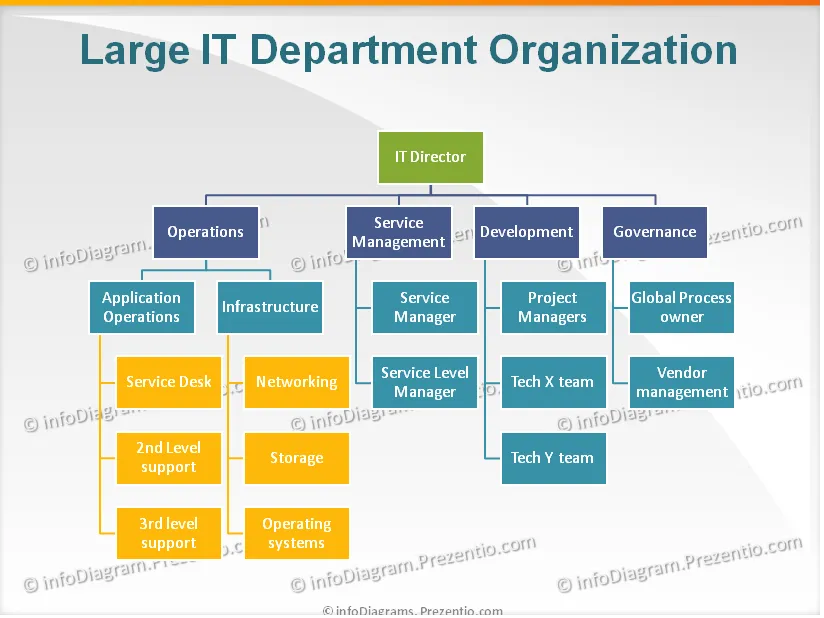
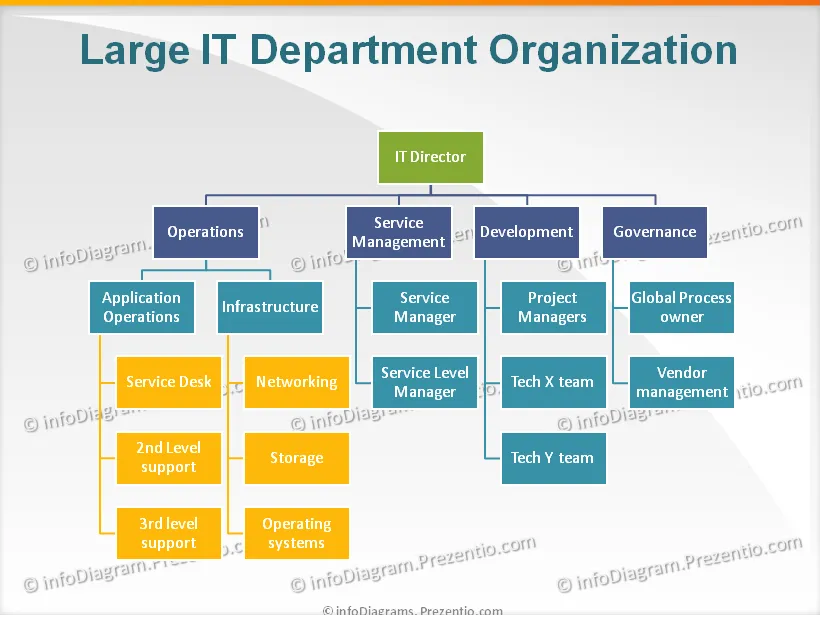
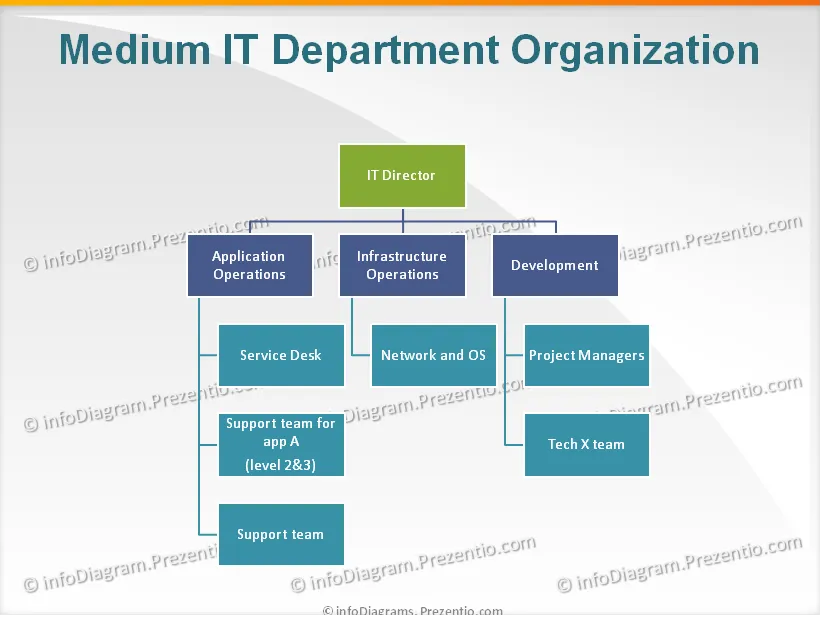
Set of diagrams showing:
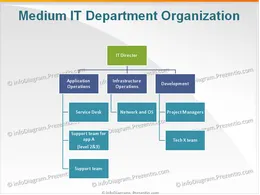
- org charts of IT departments
- support model according to ITIL® best practices
Definitions
- Operations - teams which specialize in operations and support of production systems.
- Service Management - business facing layer of IT department. Roles which ongoingly cooperate with business customers to ensure business-IT alignement.
- Development - organization delivering resources for development of new solutions, e.g. Java programmers, solution architects. Project Managers ususally are placed in development departments.
- Governance - team responsible for ensuring corporate and IT governance are aligned. Furthermore the team is responsible for overall quality of services provided by IT Organization and management of external vendors.
- Incident - an event that distrupts or might distrupt a service.
- Problem - an unknown cause for incidents. E.g. bug in the code, software miss-configuration.
- Level 1 - Service Desk - function in IT Organization responsible for being single point of esclation for incidents and service request.
- Level 2 - support group acting as a 2nd escalation level. The group has overall technical understanding of Service provided for end user. Should be able to resolve up to 90% of incidents
- Level 3 - higly specialized group in technology domain. Resolves uniqe incidents and works on permement solutions to problems
Sources
- "The official Introduction to the ITIL® Service Lifecycle", TSO, 2007
Author
- Marcin
- contact: (here)
Slides included in this PowerPoint Presentation:
Reviews
Your graphics add a nice touch to my presentations and I recently used them for one of my all-hands meetings. Your toolbox adds professionalism to my slides. Instead of using standard clipart.
Claude Jones, Director of Engineer, @Walmartlabs, USA
I needed a fresh look at some of my slides. I've tried to find a way to create a paintbrush effect, to underline, accentuate, add some color and the handwritten markers were just the things. Very easy to use, easy to size, change the color. It was an affordable, perfect solution and I'm happy to recommend it.
Anonymous, US
The crisp, clean look of the graphics, and the fact that it allowed me to easily edit and change the colors to match the template was my main reason for purchasing them.
Brandie Jenkins, E-learning Developer, USA

How to Edit
How to edit text & colors

How to expand / shorten diagram

How to Replace Icons in infoDiagram PPT

You may also need