Reviews
Sus gráficos añaden un toque agradable a mis presentaciones y recientemente los usé para una de mis reuniones generales. Su conjunto de herramientas añade profesionalismo a mis diapositivas. En lugar de usar imágenes prediseñadas estándar.
Necesitaba un aspecto fresco para algunas de mis diapositivas. Había intentado encontrar una forma de crear un efecto de pincel, de subrayar, acentuar, añadir algo de color y los marcadores escritos a mano fueron justo lo que necesitaba. Muy fácil de usar, fácil de ajustar el tamaño, cambiar el color. Fue una solución asequible y perfecta, y estoy feliz de recomendarla.
El aspecto nítido y limpio de los gráficos, y el hecho de que me permitiera editar y cambiar fácilmente los colores para que coincidieran con la plantilla fue mi principal razón para comprarlos.
Description
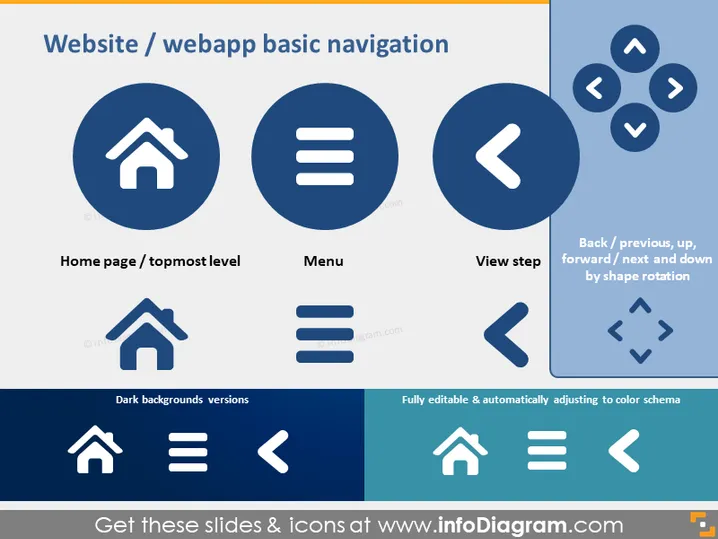
Website / webapp basic navigation
Slide Content
The slide presents icons representing basic navigation elements for a website or web application. It highlights three primary navigation components: the home page or topmost level icon (house symbol), indicating the main page of a site; the menu icon (three horizontal lines), denoting a drop-down or pop-out list of options; and the view step icon (arrow symbol), which suggests moving to the previous or next view. Additional directives include back/previous, up, forward/next, and down navigation, illustrated by arrows pointing in relative directions to indicate movement between pages or sections.
Graphical Look
- The slide background is a flat, white color.
- There are four main circular graphical icons arranged horizontally at the top of the slide, each set against a dark blue background.
- Each icon is a widely recognized symbol for website navigation: a house for the home page, three stacked lines for the menu, and an arrow for the view step.
- Below each top icon is a corresponding label in white text explaining the icon's meaning.
- Below the labeled icons are the same icons presented again, this time intended for dark backgrounds and they appear white against a dark blue rectangle.
- The right side of the slide features a vertical rectangular shape with rounded corners, displaying a group of arrow icons arranged in a circular pattern, representing different navigation directions.
- The lower part of the slide includes an additional descriptive text box detailing that icons are fully editable and adaptable to color schemes.
The slide has a clean, professional look with a strong visual hierarchy that clearly emphasizes the navigation icons. The color scheme is limited to white, varying shades of blue, and a touch of orange, providing a striking contrast that makes the information easily discernible.
Use Cases
- Presenting the user interface structure of a website or web application to stakeholders during project meetings.
- Educating new employees during onboarding about the organization's intranet or specific web applications they will be using.
- Including in a user experience (UX) design presentation to showcase standard navigation elements.
- Utilizing as a reference in a web design workshop or seminar to teach participants about web navigation best practices.
How to Edit
How to edit text & colors

How to expand / shorten diagram

How to Replace Icons in infoDiagram PPT


