Reviews
Your graphics add a nice touch to my presentations and I recently used them for one of my all-hands meetings. Your toolbox adds professionalism to my slides. Instead of using standard clipart.
I needed a fresh look at some of my slides. I've tried to find a way to create a paintbrush effect, to underline, accentuate, add some color and the handwritten markers were just the things. Very easy to use, easy to size, change the color. It was an affordable, perfect solution and I'm happy to recommend it.
The crisp, clean look of the graphics, and the fact that it allowed me to easily edit and change the colors to match the template was my main reason for purchasing them.
Description
Two Points Comparison Watercolor Circles
Slide Content
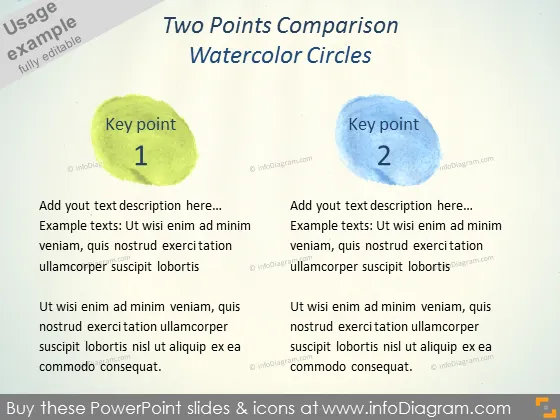
The slide is dedicated to comparing two key points using a visual metaphor of watercolor circles. Key Point 1 is emphasized with a green watercolor circle, while Key Point 2 is highlighted with a blue circle. Both points contain placeholder text that invites the presenter to add a description, which is further expanded upon with example texts in smaller print to suggest detailed explanations or evidence supporting each key point.
Graphical Look
- Two large watercolor circle shapes dominate the slide, one green and the other blue, symbolizing different points of comparison.
- Each circle contains a bold number ("1" and "2") in the center to indicate the sequence or priority of the key points.
- "Key point" labels are placed inside each circle, directly above the numbers, to guide the audience's attention to the central ideas.
- Placeholder text boxes reside below each circle for adding descriptive content about each key point.
- The slide has a textured background that resembles a grainy paper surface, providing a subtle, artistic backdrop to the content.
- The overall color scheme is muted, with the watercolor circles providing soft splashes of color.
The slide combines a professional layout with a creative, artistic design. The watercolor effect adds a tactile, hand-crafted quality to the presentation.
Use Cases
- Comparing the pros and cons of different strategies or solutions in a business proposal.
- Highlighting the strengths and weaknesses of two competing products in a marketing presentation.
- Discussing two alternative perspectives or approaches in a team meeting or workshop.
- Delineating two separate but related ideas or concepts in an educational or training session.
How to Edit
How to edit text & colors

How to expand / shorten diagram

How to Replace Icons in infoDiagram PPT


