Reviews
Your graphics add a nice touch to my presentations and I recently used them for one of my all-hands meetings. Your toolbox adds professionalism to my slides. Instead of using standard clipart.
I needed a fresh look at some of my slides. I've tried to find a way to create a paintbrush effect, to underline, accentuate, add some color and the handwritten markers were just the things. Very easy to use, easy to size, change the color. It was an affordable, perfect solution and I'm happy to recommend it.
The crisp, clean look of the graphics, and the fact that it allowed me to easily edit and change the colors to match the template was my main reason for purchasing them.
Description
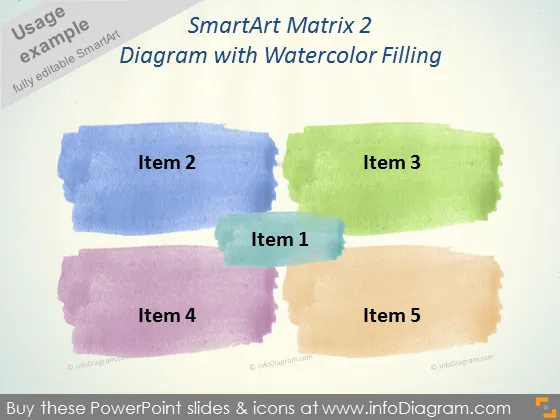
SmartArt Matrix 2
Slide Content
The PowerPoint slide titled "SmartArt Matrix 2" appears to present a diagram with watercolor filling that visually separates five distinct items. These items are likely components or categories that are part of a larger concept or strategy. For instance, "Item 1" seems to be centrally important, possibly denoting the primary focus or foundation of the concept. "Item 2" and "Item 3" could represent contrasting elements, while "Item 4" and "Item 5" might symbolize additional components that complement or expand upon the central idea.
Graphical Look
- The slide features a watercolor texture filling for each of the items.
- Item labels ("Item 1", "Item 2", etc.) are in a bold, sans-serif font, centered within their respective shapes.
- The shapes for each item are rectangular with rough edges, simulating a painted effect.
- The watercolor fill colors vary, with blue, green, purple, and orange tones.
- The layout is in a matrix format with "Item 1" centered and slightly overlapping the bottom edge of "Item 2" and "Item 3".
- The background is a subtle textured grey, providing contrast for the vibrant watercolor shapes.
The slide uses a creative and artistic design to distinguish its elements, with an emphasis on a handcrafted look provided by the watercolor texture. The overall aesthetic communicates a relaxed, yet organized approach to presenting categorizations or groupings.
Use Cases
- Illustrating the relationship between different components of a marketing strategy.
- Presenting a business model with each item representing a different pillar.
- Demonstrating the segmentation of a market or a customer base.
- Showcasing different stages of product development or project phases.
How to Edit
How to edit text & colors

How to expand / shorten diagram

How to Replace Icons in infoDiagram PPT


