Reviews
Your graphics add a nice touch to my presentations and I recently used them for one of my all-hands meetings. Your toolbox adds professionalism to my slides. Instead of using standard clipart.
I needed a fresh look at some of my slides. I've tried to find a way to create a paintbrush effect, to underline, accentuate, add some color and the handwritten markers were just the things. Very easy to use, easy to size, change the color. It was an affordable, perfect solution and I'm happy to recommend it.
The crisp, clean look of the graphics, and the fact that it allowed me to easily edit and change the colors to match the template was my main reason for purchasing them.
Description
Listing Details
Slide Content
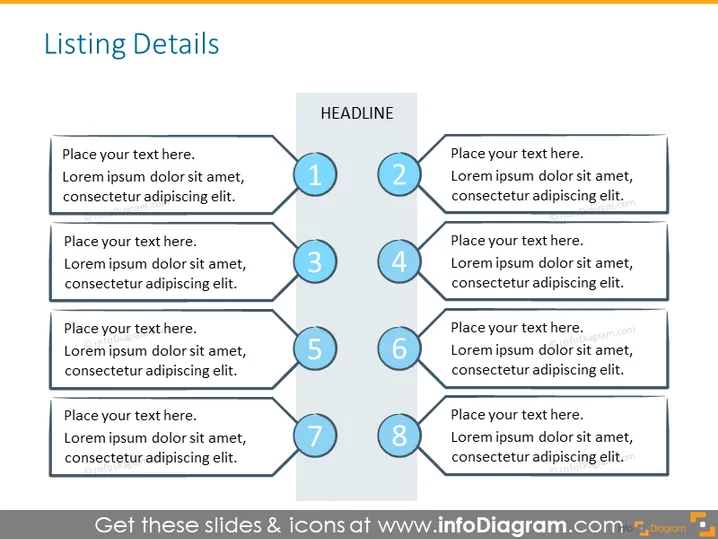
The PowerPoint slide titled "Listing Details" appears to illustrate a structured framework for presenting information in a sequential or categorized manner. The slide is visually organized into eight sections, each with a placeholder for text and a corresponding number. Each numbered section potentially represents a step or a key point, allowing the presenter to outline a process, a list of items, or various attributes of a topic in a clear and organized way. The placeholders suggest the inclusion of explanatory text for each item listed.
Graphical Look
- The slide has a clean, professional design with a cool color palette, primarily blue and gray tones.
- It features a two-column layout; the left column contains four text boxes with placeholder text, while the right column has a central title box labeled "HEADLINE" with four numbered circles adjacent to it.
- Each numbered circle is connected to a corresponding text box by a solid line, creating a visual bridge that guides the viewer's eye across the slide.
- The numbered circles have a three-dimensional effect, with a subtle drop shadow to give the impression of layers.
- The background of the slide is a light gray, providing a neutral canvas that makes the blue and black elements stand out.
- Text within the placeholders is in black, ensuring readability against the light background.
The overall look of the slide is modern and business-like, with a structured layout that promotes clarity. The design elements are used consistently, delivering a visually harmonious presentation.
Use Cases
- This slide can be used to outline steps in a business process or workflow during team meetings or training sessions.
- It can be presented to stakeholders to highlight key points in a business proposal or project plan.
- The slide is suitable for summarizing the agenda items or topics in a conference presentation or seminar.
- Businesses might utilize it to categorize and explain the benefits or features of a product in a sales pitch or marketing presentation.
How to Edit
How to edit text & colors

How to expand / shorten diagram

How to Replace Icons in infoDiagram PPT


