Reviews
Your graphics add a nice touch to my presentations and I recently used them for one of my all-hands meetings. Your toolbox adds professionalism to my slides. Instead of using standard clipart.
I needed a fresh look at some of my slides. I've tried to find a way to create a paintbrush effect, to underline, accentuate, add some color and the handwritten markers were just the things. Very easy to use, easy to size, change the color. It was an affordable, perfect solution and I'm happy to recommend it.
The crisp, clean look of the graphics, and the fact that it allowed me to easily edit and change the colors to match the template was my main reason for purchasing them.
Description
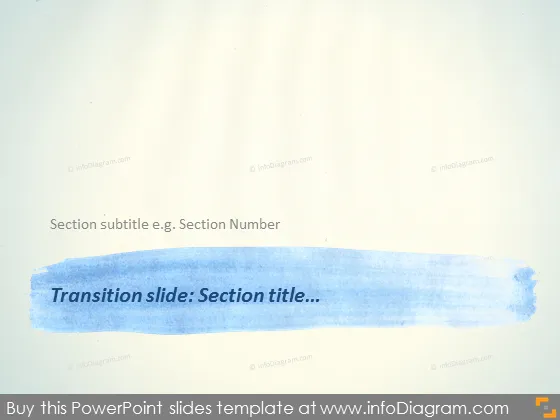
Transition slide: Section title...
Slide Content
The slide is designed to serve as a transition or a separator between sections in a presentation. It includes a place for a "Section subtitle e.g., Section Number," allowing the presenter to number sections or provide additional context. The broad blue brush stroke emphasizes the section title, drawing attention to the transitional nature. This functionality is useful in providing structure to a presentation and giving the audience clear markers of progression.
Graphical Look
- The background is textured, resembling paper or a canvas, which adds an artistic feel to the slide.
- A large, horizontal blue brush stroke dominates the center of the slide, creating a visually striking element that contrasts with the background.
- Inside this brush stroke, there is white text reading "Transition slide: Section title..." which stands out against the blue.
- Above the blue brush stroke, there is a smaller plain black text indicating a place for "Section subtitle e.g., Section Number."
- The blue brush stroke has a textured edge, enhancing the hand-painted appearance and adding a depth of visual interest.
- No other graphical elements or icons are present on the slide.
The slide's overall look is clean and modern, with the artistic background and brush stroke lending a creative and informal aesthetic. The simplicity of the design keeps it focused and professional.
Use Cases
- To clearly demarcate different sections within a presentation, keeping the audience oriented to the flow of content.
- In educational or training sessions where sections cover different topics or modules, facilitating easy transitions.
- During corporate or business strategy presentations to separate distinct strategic areas or initiatives.
- For organizing workshop or seminar content into digestible parts, especially when dealing with a diverse range of subjects.
How to Edit
How to edit text & colors

How to expand / shorten diagram

How to Replace Icons in infoDiagram PPT


