Reviews
Your graphics add a nice touch to my presentations and I recently used them for one of my all-hands meetings. Your toolbox adds professionalism to my slides. Instead of using standard clipart.
I needed a fresh look at some of my slides. I've tried to find a way to create a paintbrush effect, to underline, accentuate, add some color and the handwritten markers were just the things. Very easy to use, easy to size, change the color. It was an affordable, perfect solution and I'm happy to recommend it.
The crisp, clean look of the graphics, and the fact that it allowed me to easily edit and change the colors to match the template was my main reason for purchasing them.
Description
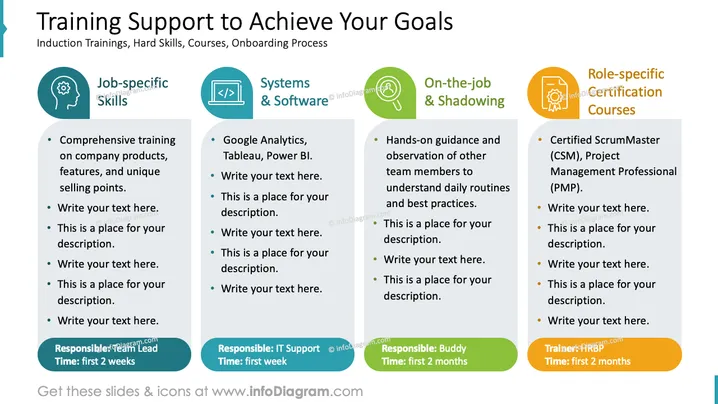
Training Support to Achieve Your Goals
Slide Content
The slide is about "Training Support to Achieve Your Goals," encompassing various areas of workplace learning. It outlines four key components: Job-specific Skills, Systems & Software, On-the-job & Shadowing, and Role-specific Certification Courses. For each component, it offers a placeholder for a description or relevant points. Job-specific Skills focus on comprehensive training about company products and unique selling points. Systems & Software mention tools like Google Analytics, Tableau, and Power BI. On-the-job & Shadowing implies hands-on guidance and learning daily routines from observing team members. Lastly, Role-specific Certification Courses could include certifications like Certified ScrumMaster (CSM) or Project Management Professional (PMP).
Graphical Look
- The slide has a wide format with a clean, professional aesthetic.
- A bold title in capital letters is at the top of the slide, with a subtitle underneath in smaller text.
- Four horizontal blocks are color-coded and aligned centrally.
- Each block contains an icon representative of its theme (a gear for Job-specific Skills, code brackets for Systems & Software, a circle-and-arrow for On-the-job & Shadowing, and a badge for Role-specific Certification Courses).
- Bullet points are presented within each block, with placeholder text.
- Each block has a footer area with a green accent color indicating the responsible role and timeframe for the training aspect highlighted in the respective block.
The slide uses a harmonious color scheme and clear, simple icons to convey its message. The layout is symmetrical and conveys a sense of organization and structure.
Use Cases
- In a human resources or departmental meeting to present training strategies and plans.
- During onboarding sessions to introduce new hires to the training support available.
- In management presentations to discuss and optimize the training process and resources.
- For professional development workshops to showcase continuous learning opportunities and career growth paths.
How to Edit
How to edit text & colors

How to expand / shorten diagram

How to Replace Icons in infoDiagram PPT


