Reviews
Ihre Grafiken verleihen meinen Präsentationen eine nette Note, und ich habe sie kürzlich für eines meiner All-Hands-Meetings verwendet. Ihre Toolbox verleiht meinen Folien Professionalität, anstatt Standard-Clipart zu verwenden.
Ich brauchte einen neuen Blick auf einige meiner Folien. Ich habe versucht, einen Weg zu finden, einen Pinselschlag-Effekt zu erzielen, um zu unterstreichen, hervorzuheben, Farbe hinzuzufügen, und die handgeschriebenen Markierungen waren genau das Richtige. Sehr einfach zu bedienen, leicht in der Größe zu ändern, die Farbe zu ändern. Es war eine erschwingliche, perfekte Lösung und ich empfehle sie gerne weiter.
Die klare, saubere Optik der Grafiken und die Tatsache, dass ich die Farben leicht bearbeiten und an die Vorlage anpassen konnte, war mein Hauptgrund für den Kauf.
Description
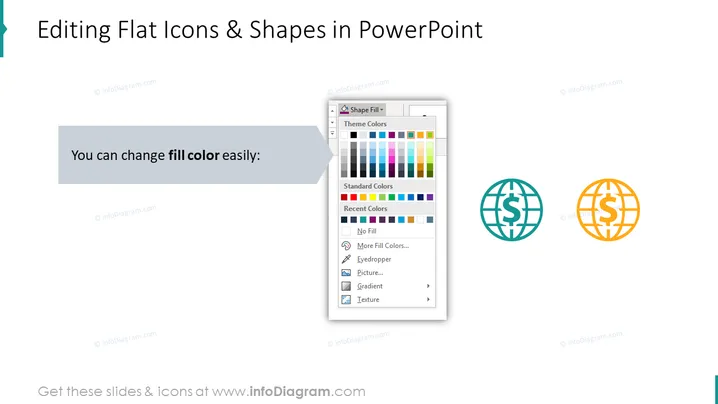
Editing Flat Icons & Shapes in PowerPoint
Slide Content
The slide focuses on how to customize flat icons and shapes within PowerPoint presentations, emphasizing the ease of changing fill colors. This essentially instructs users on the adaptability of visual elements to match the aesthetic of their presentation, ensuring consistency and professionalism. Two icons represent this customization, one with a blue-green color and the other with an orange color, possibly to show a before and after effect of icon color change.
Graphical Look
- A light blue ribbon banner shapes the top left corner of the slide, containing the title "Editing Flat Icons & Shapes in PowerPoint" in white text.
- Below the title, there is a rectangular text box with a darker gray fill, displaying the phrase "You can change fill color easily:" in white, sans-serif font.
- To the right of the rectangular box, there is an enlarged, detailed tooltip graphic resembling the PowerPoint interface, showing the "Shape Fill" drop-down menu with options for color changes.
- Two flat icons, each depicting a globe with a currency symbol ($), are shown to the right. The left icon is outlined in blue-green color, while the right icon is in orange, indicating color customization.
- The overall slide background is plain white.
The slide uses a balanced and clean design, with a mix of text and representative graphics to convey its message. The use of PowerPoint interface graphics ensures viewers quickly understand the context is related to software use.
Use Cases
- To teach beginners how to customize their PowerPoint presentations in a workshop or classroom setting.
- In a tutorial or guide for PowerPoint users on altering icons and shapes to maintain brand consistency.
- During an internal company training session about enhancing presentation visual appeal.
- As part of a webinar series on advanced PowerPoint techniques for corporate professionals and designers.
How to Edit
How to edit text & colors

How to expand / shorten diagram

How to Replace Icons in infoDiagram PPT


