Reviews
Your graphics add a nice touch to my presentations and I recently used them for one of my all-hands meetings. Your toolbox adds professionalism to my slides. Instead of using standard clipart.
I needed a fresh look at some of my slides. I've tried to find a way to create a paintbrush effect, to underline, accentuate, add some color and the handwritten markers were just the things. Very easy to use, easy to size, change the color. It was an affordable, perfect solution and I'm happy to recommend it.
The crisp, clean look of the graphics, and the fact that it allowed me to easily edit and change the colors to match the template was my main reason for purchasing them.
Description
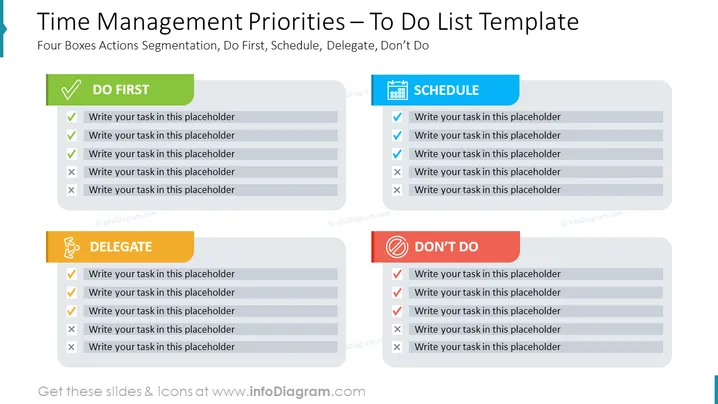
Time Management Priorities – To Do List Template
Slide Content
The slide presents a task prioritization framework titled "Time Management Priorities – To Do List Template," which includes four distinct categories for managing tasks: "DO FIRST" for urgent and important tasks needing immediate attention; "SCHEDULE" for tasks that are important but not urgent and can be planned for later; "DELEGATE" for tasks that are less critical and can be assigned to others; and "DON’T DO" for tasks that are neither urgent nor important and can be eliminated. Each category is visually distinguished by different colors and icons.
Graphical Look
- The slide background is a gradient of light gray to white, creating a clean and modern look.
- Four distinct rectangular shapes, each with a different color and title, serving as headers for task categories.
- Each rectangular shape has a corresponding icon on the left side, representing the nature of the tasks within the category.
- Checkmarks and crosses in front of the placeholder texts suggest the completion status or relevance of tasks.
- The layout is evenly spaced and symmetrically arranged, dividing the slide into quarters for each category.
The slide has a balanced and organized visual composition with a clear distinction between categories through color coding and icons. The use of checkmarks and crosses contributes to its functionality, allowing for an at-a-glance understanding of task status.
Use Cases
- Utilized in project management meetings to allocate and organize tasks among team members efficiently.
- Included in personal development workshops to teach effective time management and prioritization techniques.
- Used by managers during performance reviews to discuss employees' task management skills and suggest improvements.
- Incorporated into daily planning sessions for individuals or teams to outline and track daily tasks and objectives.
How to Edit
How to edit text & colors

How to expand / shorten diagram

How to Replace Icons in infoDiagram PPT


