Reviews
Your graphics add a nice touch to my presentations and I recently used them for one of my all-hands meetings. Your toolbox adds professionalism to my slides. Instead of using standard clipart.
I needed a fresh look at some of my slides. I've tried to find a way to create a paintbrush effect, to underline, accentuate, add some color and the handwritten markers were just the things. Very easy to use, easy to size, change the color. It was an affordable, perfect solution and I'm happy to recommend it.
The crisp, clean look of the graphics, and the fact that it allowed me to easily edit and change the colors to match the template was my main reason for purchasing them.
Description
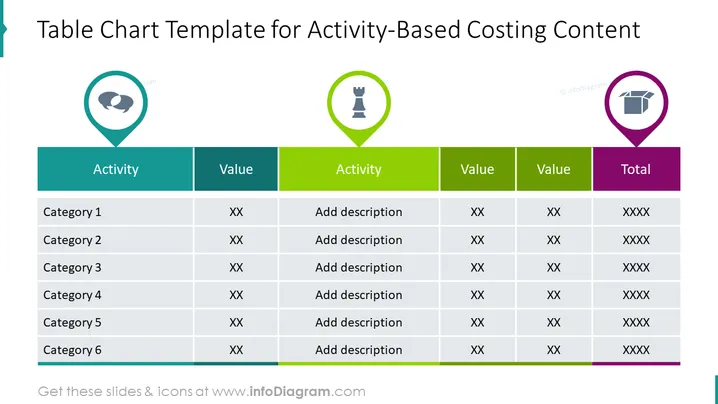
Table Chart Template for Activity-Based Costing Content
Slide Content
The PowerPoint slide titled "Table Chart Template for Activity-Based Costing Content" presents a structured comparison chart with two main activities and their corresponding values. Six categories are listed, each with allocated "XX" placeholders for values, an "Add description" placeholder for detailed activity information, and a "Total" column that aggregates the values.
Graphical Look
- The slide features a wide horizontal title bar at the top with the title text centered.
- Below the title, there are three rounded icon markers, each encasing a different symbol—the first is a satellite dish, the middle a chess piece, and the last a cardboard box.
- The main content area is a large table with columns representing Activity, Value, and Total.
- Each Activity column is differentiated by color - the first is a lighter teal and the second is a brighter green.
- Value columns align with corresponding activity columns, and a final, separate purple column indicates the Total.
- Six rows represent different categories, styled with alternating shades of grey for readability.
- The borders of the cells are thin and inconspicuous.
- Each cell contains text, either indicating the category, placeholder text "XX" for numerical data, "Add description" for textual explanations, or aggregates in the Total column.
The slide design is clean, professional, and uses a color-coding scheme to distinguish between different categories and data points. Color contrast is used effectively to categorize information and guide the viewer's eye across the table.
Use Cases
- To present cost breakdowns in a project management meeting, using the categories for different project phases or tasks.
- For financial reports or accounting overviews, where each category represents a different expense or revenue stream.
- In strategy sessions for resource allocation, where categories could indicate departments, teams, or resources.
- During workshops or training sessions on activity-based costing, as a visual aid to explain the concept and to input real data during examples or exercises.
How to Edit
How to edit text & colors

How to expand / shorten diagram

How to Replace Icons in infoDiagram PPT


