Reviews
Your graphics add a nice touch to my presentations and I recently used them for one of my all-hands meetings. Your toolbox adds professionalism to my slides. Instead of using standard clipart.
I needed a fresh look at some of my slides. I've tried to find a way to create a paintbrush effect, to underline, accentuate, add some color and the handwritten markers were just the things. Very easy to use, easy to size, change the color. It was an affordable, perfect solution and I'm happy to recommend it.
The crisp, clean look of the graphics, and the fact that it allowed me to easily edit and change the colors to match the template was my main reason for purchasing them.
Description
Status Symbols
Slide Content
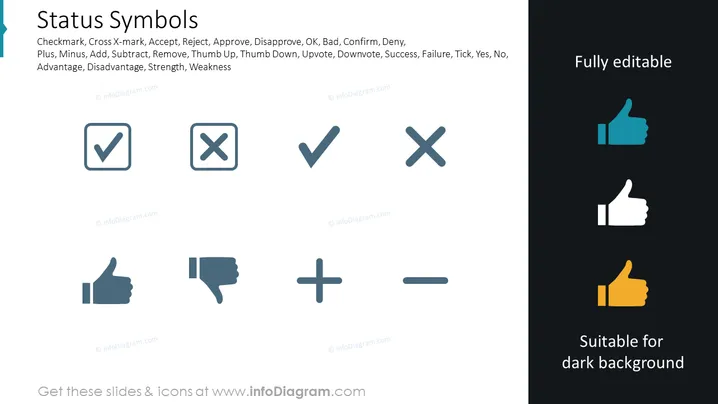
The slide titled "Status Symbols" features a collection of common icons used for conveying various statuses or actions such as acceptance, rejection, and evaluation. Key terms associated with each icon include "Checkmark" typically representing approval or completion, "Cross X-mark" denoting rejection or error, "Plus" and "Minus" for addition or subtraction respectively. Also present are "Thumb Up" and "Thumb Down" indicating approval or disapproval. These symbols are utilized to quickly communicate different conditions like "Success," "Failure," or the presence of "Advantages" and "Disadvantages."
Graphical Look
- A set of eight icons evenly aligned into two rows of four.
- Each icon is encased in its own square with rounded corners, giving a clean and organized appearance.
- Four icons in the first row: a checkmark, a cross mark, another checkmark, and another cross mark.
- Four icons in the second row: a thumbs-up, a thumbs-down, a plus sign, and a minus sign.
- The color scheme is monochromatic with icons in a shade of teal blue.
- Text on the right side includes "Fully editable" at the top and "Suitable for dark background" at the bottom, each beside a thumbs-up icon in varying shades.
- The thumbs-up icons beside the text are displayed in teal, white, and gold, exemplifying their visibility against different background colors.
The slide has a very modern and professional aesthetic, utilizing clean lines and a minimalistic color scheme to focus attention on the icons.
Use Cases
- To visualize project status updates during team meetings, where icons can quickly convey if tasks are completed or in progress.
- In stakeholder presentations to indicate approval or disapproval of certain decisions, plans, or performance metrics.
- Within training materials to signify correct or incorrect actions, making the content more engaging and easier to understand.
- For summarizing survey or feedback results in reports, where icons can serve as a quick reference to positive or negative responses.
How to Edit
How to edit text & colors

How to expand / shorten diagram

How to Replace Icons in infoDiagram PPT


