Reviews
Your graphics add a nice touch to my presentations and I recently used them for one of my all-hands meetings. Your toolbox adds professionalism to my slides. Instead of using standard clipart.
I needed a fresh look at some of my slides. I've tried to find a way to create a paintbrush effect, to underline, accentuate, add some color and the handwritten markers were just the things. Very easy to use, easy to size, change the color. It was an affordable, perfect solution and I'm happy to recommend it.
The crisp, clean look of the graphics, and the fact that it allowed me to easily edit and change the colors to match the template was my main reason for purchasing them.
Description
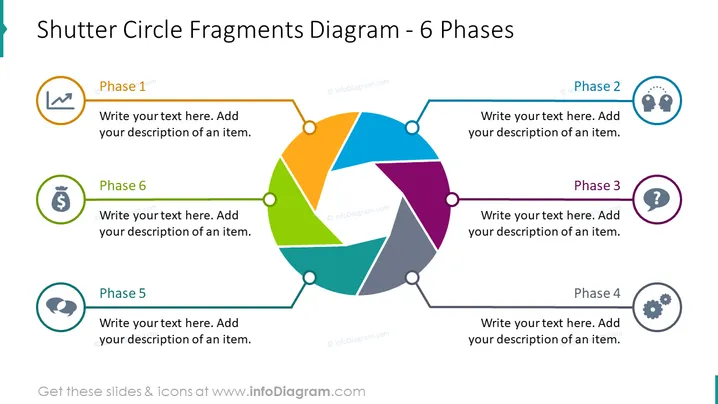
Shutter Circle Fragments Diagram - 6 Phases
Slide Content
The slide displays a 'Shutter Circle Fragments Diagram' depicting six distinct phases. Each phase is represented by a different color and has an icon symbolizing the content, with space provided for a textual explanation. The phases are arranged in a circular pattern, connected by a series of lines that give the appearance of a camera shutter or pie chart, suggesting a cyclical process or a progression of steps. This layout is typically used to describe a multi-stage process where each phase is a critical part of a whole.
Graphical Look
- A large, centrally placed circle is segmented into six colored pieces each representing a phase.
- Icons are placed within circular badges next to each phase slice – a clock for Phase 1, two figures for Phase 2, a question mark for Phase 3, gears for Phase 4, a conversation balloon for Phase 5, and a dollar sign for Phase 6.
- Lines extend from the circle connecting each segment to a circular badge.
- Placeholder text boxes are provided alongside each badge for a description of the corresponding phase.
- The segment colors vary and include shades of orange, blue, green, purple, and gray.
- The background of the slide is white, allowing the colorful diagram to stand out.
The slide has a clean, professional appearance with a vibrant circular diagram taking center stage. It is visually appealing and efficiently uses icons and color coding to differentiate between the phases.
Use Cases
- Explaining a business process or workflow in six steps during a corporate presentation.
- Illustrating stages of project development or product lifecycle in a team meeting.
- Demonstrating phases of customer engagement or marketing strategy to stakeholders.
- Providing a visual representation of a cycle or sequence in educational or training material.
How to Edit
How to edit text & colors

How to expand / shorten diagram

How to Replace Icons in infoDiagram PPT


