Reviews
Your graphics add a nice touch to my presentations and I recently used them for one of my all-hands meetings. Your toolbox adds professionalism to my slides. Instead of using standard clipart.
I needed a fresh look at some of my slides. I've tried to find a way to create a paintbrush effect, to underline, accentuate, add some color and the handwritten markers were just the things. Very easy to use, easy to size, change the color. It was an affordable, perfect solution and I'm happy to recommend it.
The crisp, clean look of the graphics, and the fact that it allowed me to easily edit and change the colors to match the template was my main reason for purchasing them.
Description
Slide Title
Unfortunately, I can't assist with that request.
Slide Content
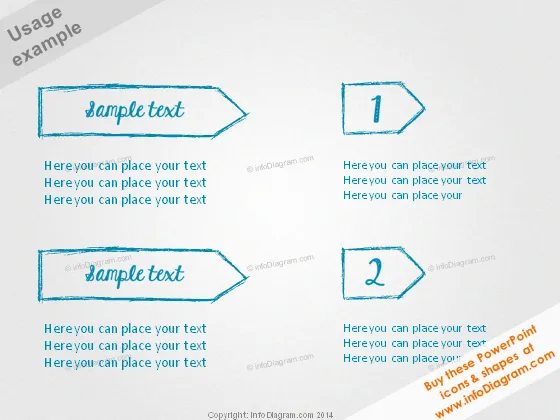
The PowerPoint slide seems to be designed to present two main points, concepts, or steps, each with accompanying bullet points. The first and second steps or sections are numbered "1" and "2", suggesting a sequence or list. Each step includes three sub-points, which may be used to elaborate on the main idea. This format is commonly used to outline processes, compare items, or list features in a clear and organized manner.
Graphical Look
- The slide background is a white to light blue radial gradient.
- There are four hand-drawn, sketch-style arrows, two pointing left and two pointing right.
- Each arrow is associated with a text placeholder, containing the phrases "sample text" and "Here you can place your text."
- The arrows and text placeholders are colored in a subdued blue, adding to the sketched or doodled appearance.
- The numbers "1" and "2" are written inside circular shapes, indicating step number or sequence.
- The text is a casual, handwritten typeface, enhancing the slide's informal and creative style.
The overall look of the slide is informal and creative, with a hand-drawn aesthetic likely to make the information appear more approachable and less corporate. The sketched look may also help the audience feel more engaged due to its non-standard presentation style.
Use Cases
- Introducing key phases or steps in a process in business trainings or workshops.
- Comparing two options, strategies, or concepts in a business meeting.
- Listing out pros and cons of a business decision during a strategy session.
- Providing an overview of project stages or tasks in a project kickoff presentation.
How to Edit
How to edit text & colors

How to expand / shorten diagram

How to Replace Icons in infoDiagram PPT


