Reviews
Your graphics add a nice touch to my presentations and I recently used them for one of my all-hands meetings. Your toolbox adds professionalism to my slides. Instead of using standard clipart.
I needed a fresh look at some of my slides. I've tried to find a way to create a paintbrush effect, to underline, accentuate, add some color and the handwritten markers were just the things. Very easy to use, easy to size, change the color. It was an affordable, perfect solution and I'm happy to recommend it.
The crisp, clean look of the graphics, and the fact that it allowed me to easily edit and change the colors to match the template was my main reason for purchasing them.
Description
Scales Comparison Diagram – 5 Elements
Slide Content
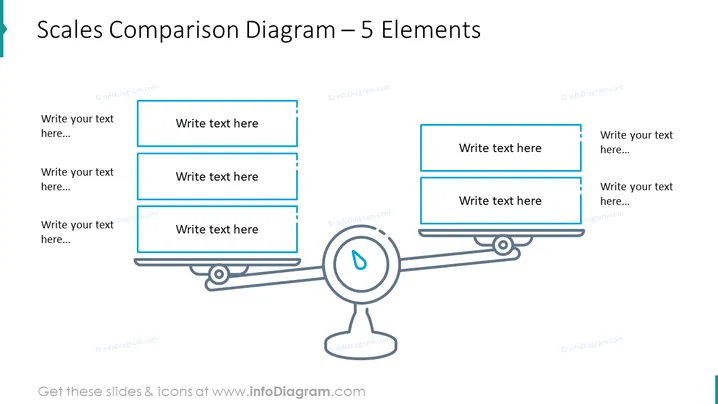
The slide entitled "Scales Comparison Diagram – 5 Elements" depicts a balance scale comparison diagram which is used to represent a comparison or balance of ideas, concepts, or topics. Each side of the scale has placeholders for three elements, indicated by rectangular shapes with text "Write text here...". These placeholders suggest that the presenter can add their own content, explaining that each side can consist of various components that should be weighed against each other.
Graphical Look
- The central graphic is a simple depiction of a balance scale with a stand and two arms.
- Each arm of the balance scale supports three light blue rectangular shapes with rounded corners, meant to contain text.
- The rectangles on the left arm are stacked vertically and aligned with the left edge, and the same applies to the right arm's rectangles.
- A drop icon in the middle of the scale serves as a pivot point, hinting at equilibrium or measurement.
- The balance scale graphic is composed of thin dark lines, giving a light and clean appearance.
- All text placeholders are indicated with a light blue outline and contain the light grey text "Write text here..." to signify where the user can customize the slide with their own content.
The slide has a modern and professional style, predominantly using blue tones on a white background. The design is minimalistic, enhancing readability and focus on the content areas.
Use Cases
- Comparing pros and cons of a business decision, with bullet points explaining each side of the argument.
- Weighing different investment options, where each element represents a potential benefit or risk.
- Presenting contrasting strategies in a business plan to evaluate their potential outcomes.
- Demonstrating the balance of resource allocation between two departments or projects.
How to Edit
How to edit text & colors

How to expand / shorten diagram

How to Replace Icons in infoDiagram PPT


