Reviews
Sus gráficos añaden un toque agradable a mis presentaciones y recientemente los usé para una de mis reuniones generales. Su conjunto de herramientas añade profesionalismo a mis diapositivas. En lugar de usar imágenes prediseñadas estándar.
Necesitaba un aspecto fresco para algunas de mis diapositivas. Había intentado encontrar una forma de crear un efecto de pincel, de subrayar, acentuar, añadir algo de color y los marcadores escritos a mano fueron justo lo que necesitaba. Muy fácil de usar, fácil de ajustar el tamaño, cambiar el color. Fue una solución asequible y perfecta, y estoy feliz de recomendarla.
El aspecto nítido y limpio de los gráficos, y el hecho de que me permitiera editar y cambiar fácilmente los colores para que coincidieran con la plantilla fue mi principal razón para comprarlos.
Description
Quarter Circle Sphere Diagram with 4 Layers
Slide Content
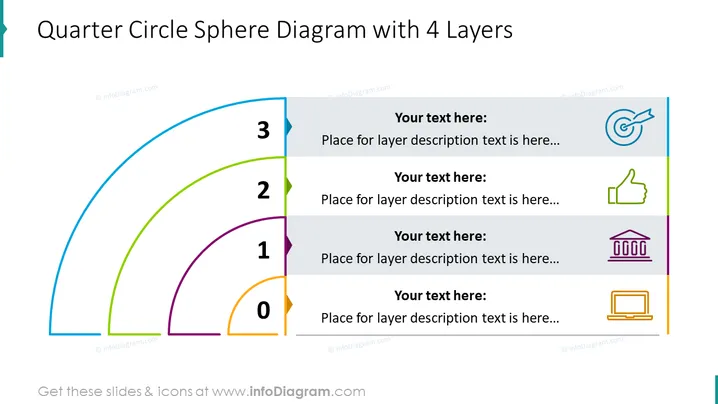
The slide displays a multilayered approach to a concept or strategy using a "Quarter Circle Sphere Diagram with 4 Layers." Each layer, numbered from 0 to 3, represents a stage of progression or element of the concept and is accompanied by a placeholder for a descriptive text. These placeholders suggest where users can input details about each specific layer, potentially explaining its significance or role within the broader topic being presented.
Graphical Look
- A large quarter circle with four concentric arc layers on the left side, each a different color: orange, purple, green, and blue in ascending order.
- Bold numbers labeling each layer: 0 for the innermost layer, then 1, 2, and 3 for the outer layers.
- Four text placeholders aligned on the right, each paired with a corresponding layer's color.
- Iconic representations adjacent to each text placeholder: a target for layer 3, a thumbs up for layer 2, a building front for layer 1, and a laptop for layer 0.
- A thin vertical line separating the diagram and text, matching the color of the outermost layer (blue).
The slide combines a colorful graphical representation with editable text components, creating a clean and visually engaging layout. The use of simple icons aids in conveying the functionality or theme for each respective layer of the diagram.
Use Cases
- Outlining a step-by-step development plan where each layer represents a phase in project progression.
- Describing different levels of a hierarchical system or organization with increasing importance or complexity.
- Conveying a product roadmap, where each layer denotes a forthcoming feature or level of enhancement.
- Illustrating a layered strategy in marketing or sales, with each level building upon the previous one.
How to Edit
How to edit text & colors

How to expand / shorten diagram

How to Replace Icons in infoDiagram PPT


